AccountSync ETrade SnapTrade Setup
E*TRADE Data Access via SnapTrade (Beta)
bivio has partnered with SnapTrade to support automatic E*TRADE transaction imports through AccountSync. This method will be replacing the older OFX AccountSync method. Clubs can link their accounts using the steps below.
What to expect:
Authorization - You'll log in to E*TRADE's own site to authorize SnapTrade as a third-party service.
Read-Only Access - bivio will have read-only access to your account's balance, transactions, and holdings - we cannot take any actions on the account.
Beta status - This integration is new, so transaction imports may be slower than usual while we finalize things. We appreciate your patience.
No Extra Cost - There is no additional charge for linking via SnapTrade.
Connecting bivio AccountSync to a E*TRADE Brokerage Account
Login to your club in bivio.com and select Accounting>Accounts. At the right of your E*TRADE account click "info". If you are switching from another broker to E*TRADE, create a new account for E*TRADE in bivio by clicking the yellow "Create" icon and type E*TRADE in the Name field.
Select "E*TRADE via SnapTrade" from the drop-down box titled "Brokerage (Optional)".
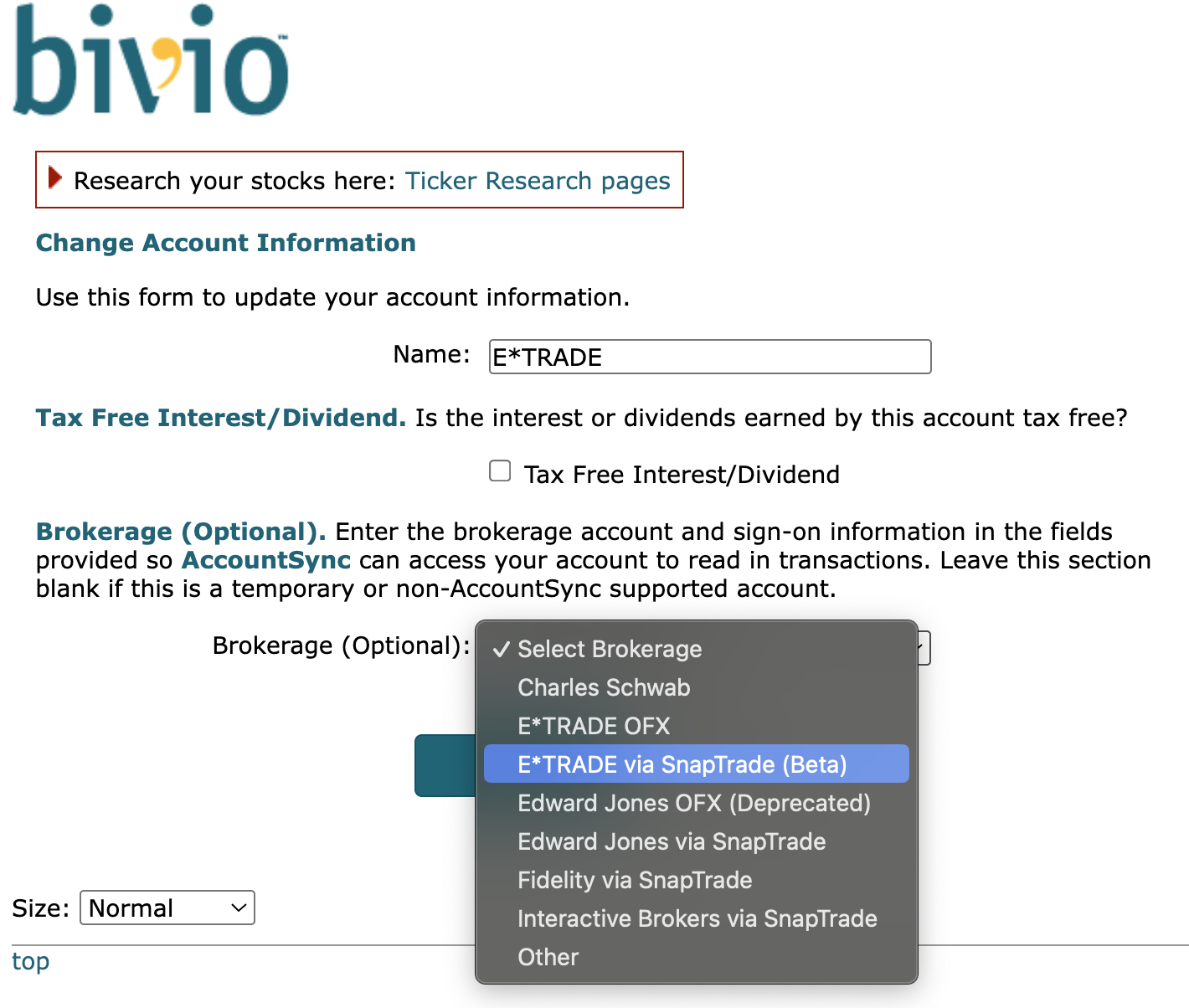
The page will refresh and it may be a short time before a "Link Account" button appears.
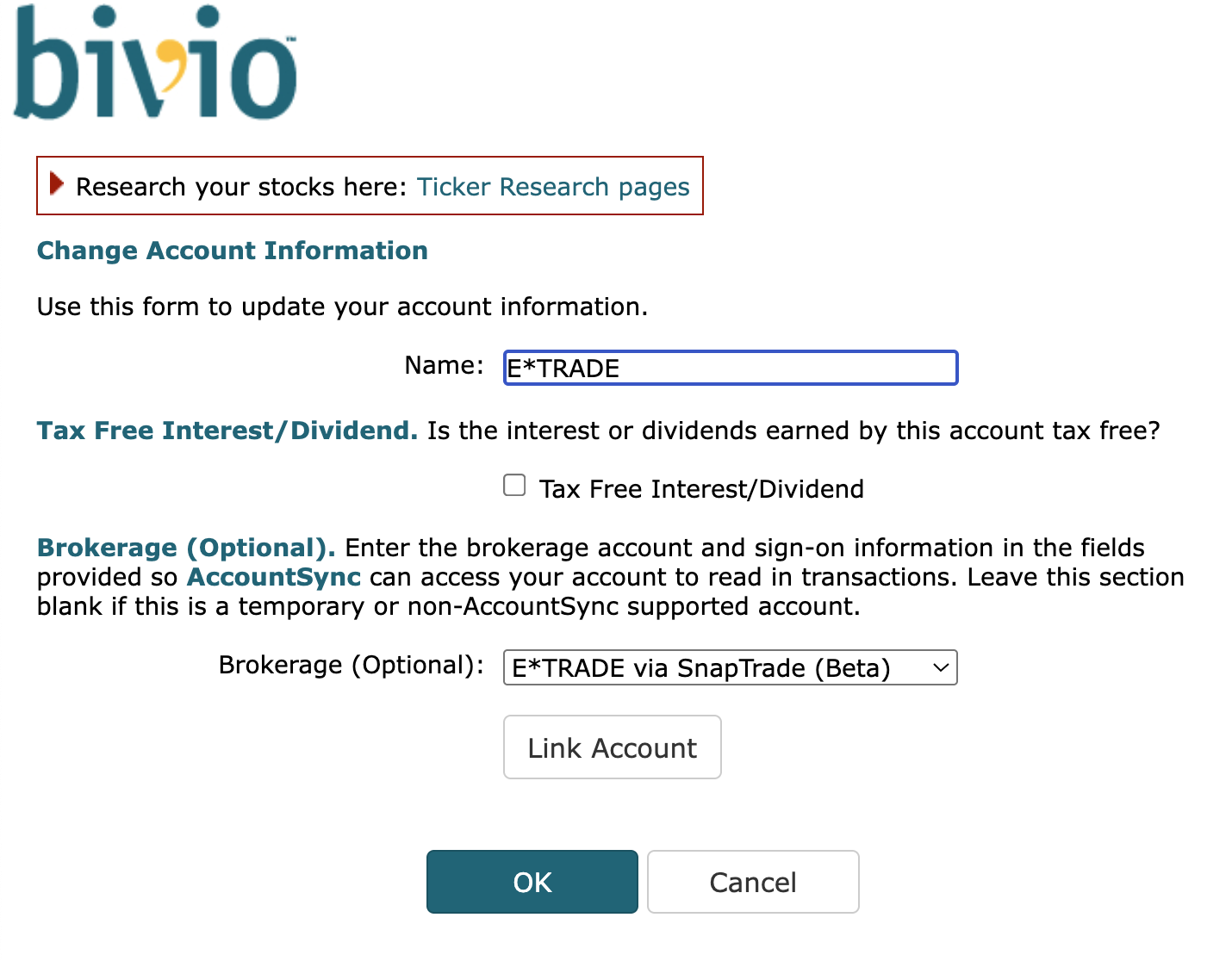
Click the Link Account button, which will redirect you to SnapTrade authorizations.
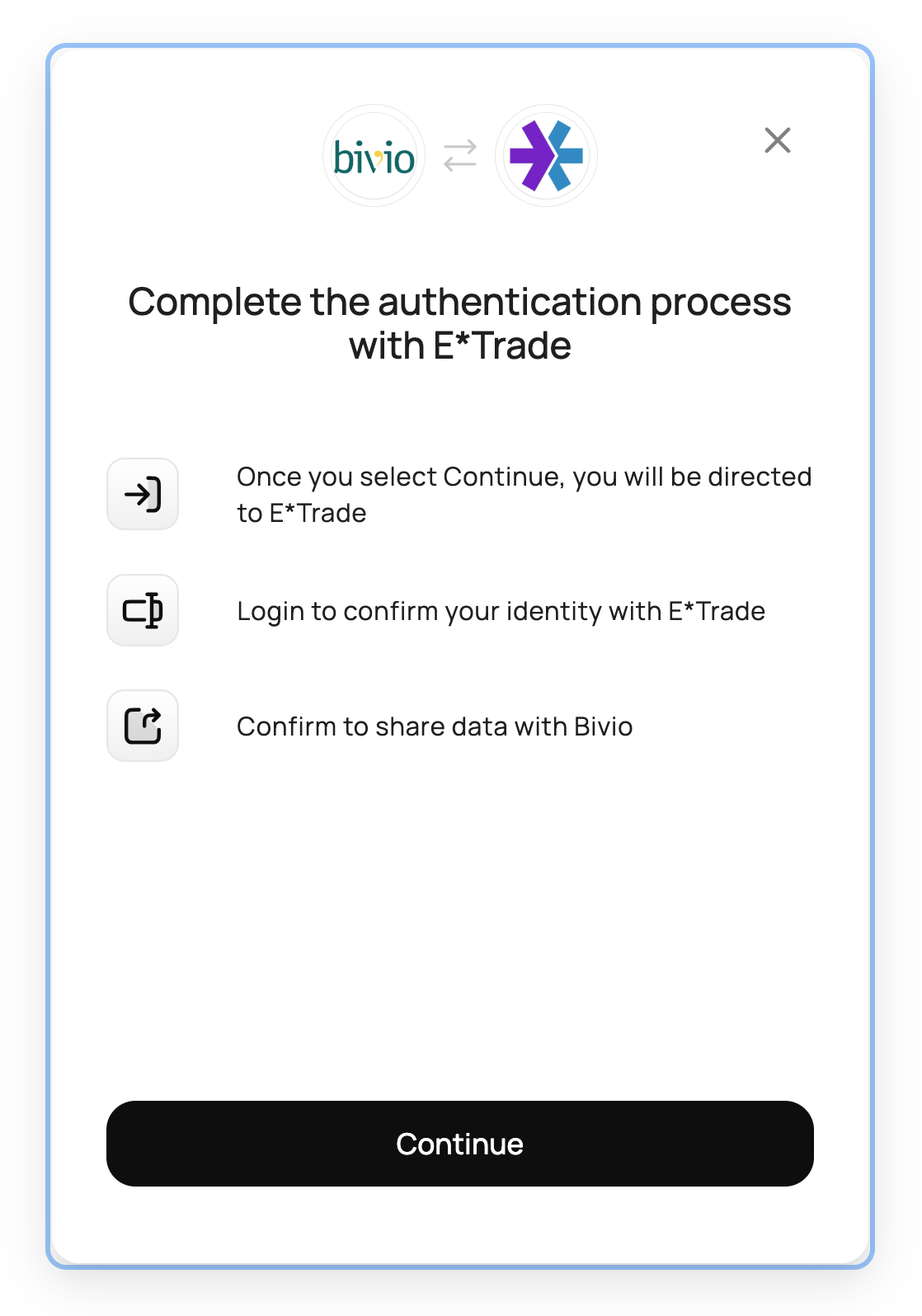
Click "Continue", which will redirect you to E*TRADE.
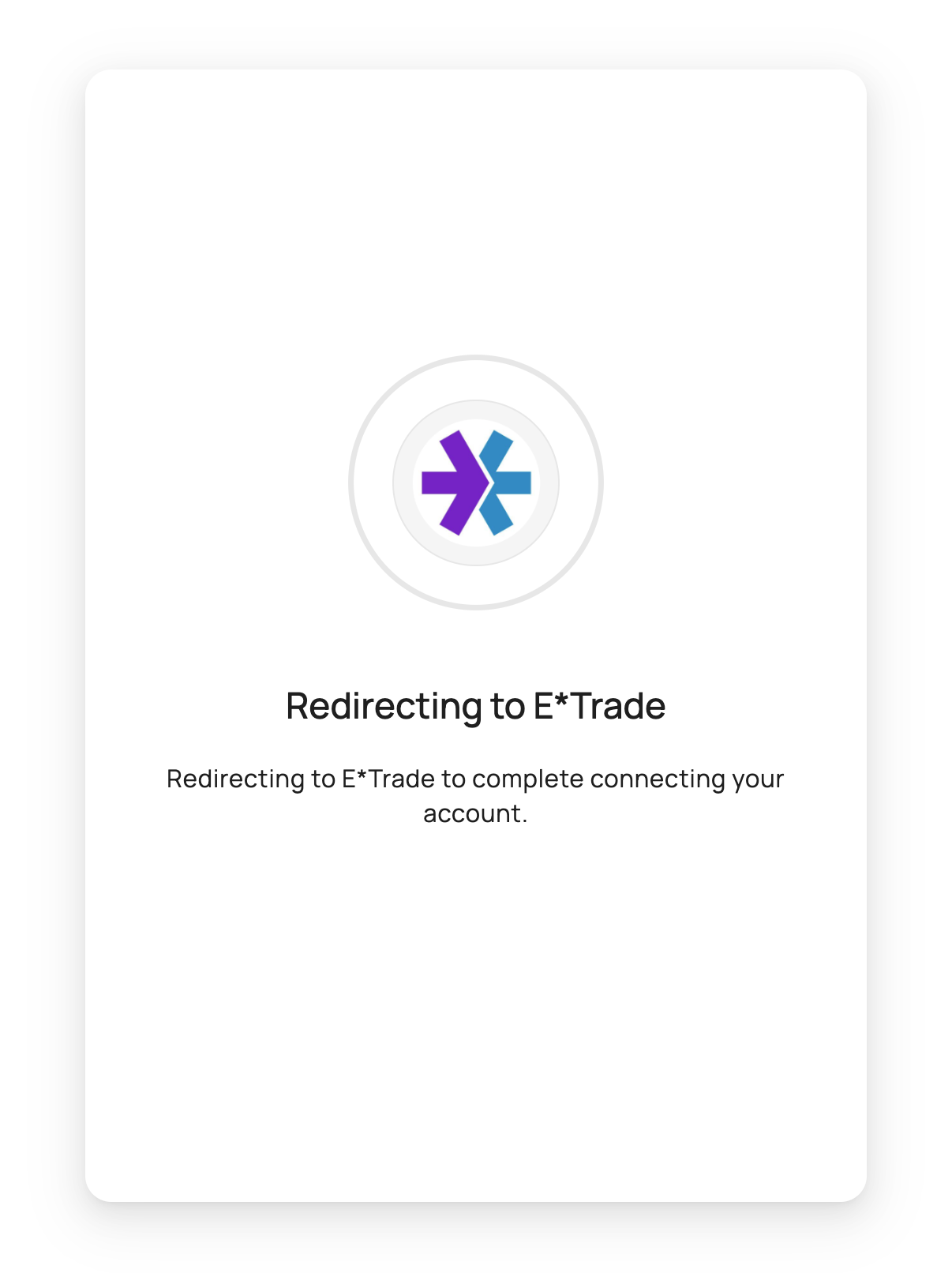
Log in to the club's E*TRADE account.
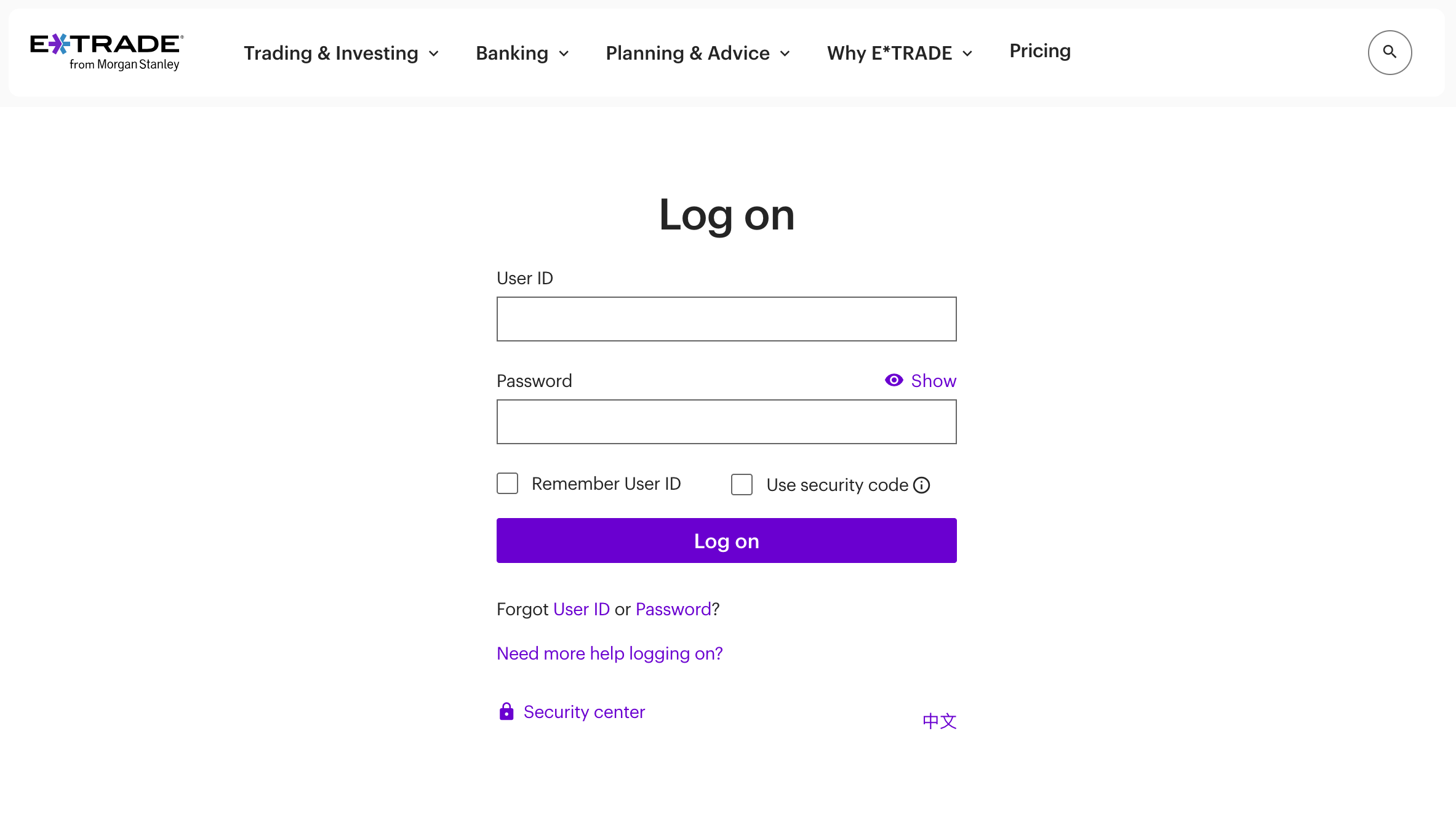
Complete any additional steps presented by E*TRADE and/or SnapTrade.
You should now be redirected back to your bivio account. The Brokerage Account Name field will now display a redacted account name/number. Ensure that the selected account matches the E*TRADE account that you'd like to link.
Click OK to complete the setup.
Since this integration is new, it may take more time than usual for transactions to appear in your bivio account. We will try to import transactions as soon as possible. Let us know at support@bivio.com if AccountSync hasn't imported any given E*TRADE transactions for 3 or more business days. Also let us know if any transactions are imported incorrectly.