Two Factor Authentication
Two-Factor Authentication Setup
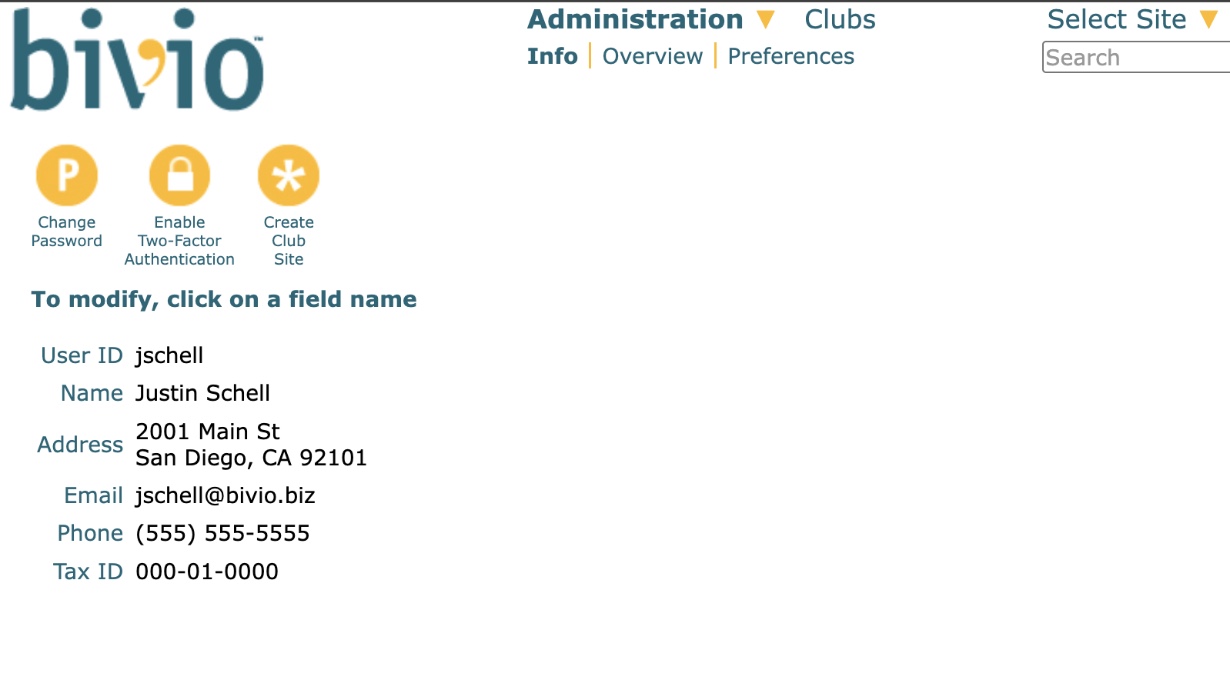
"Enable Two-Factor Authentication" now available via Select Site > My Site > Administration > Info, or roster "modify" action (shown later).
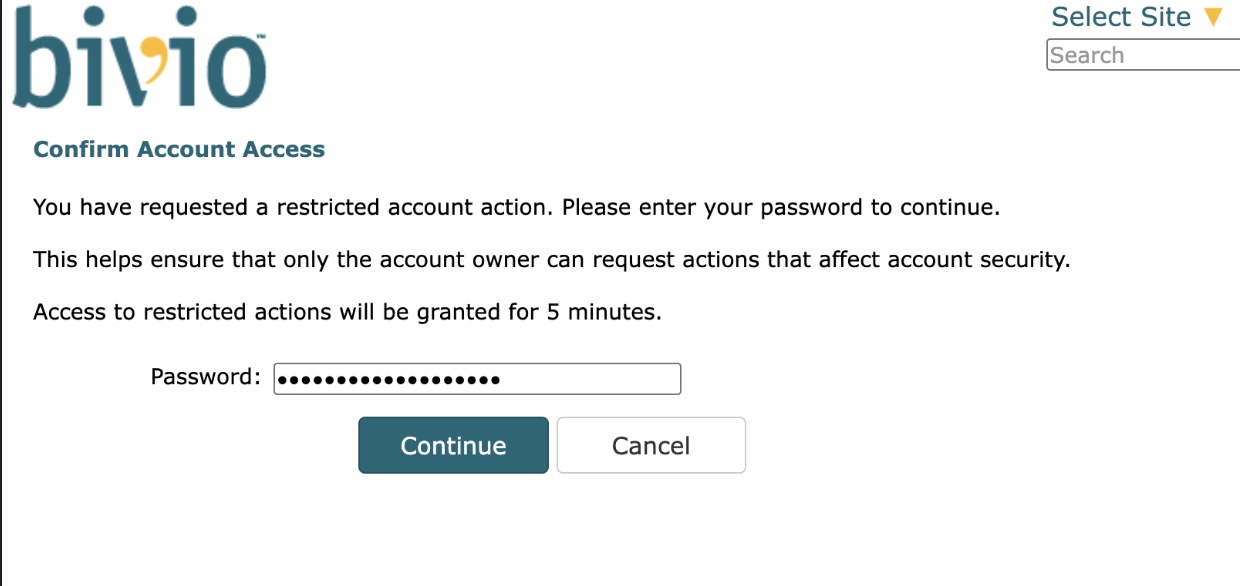
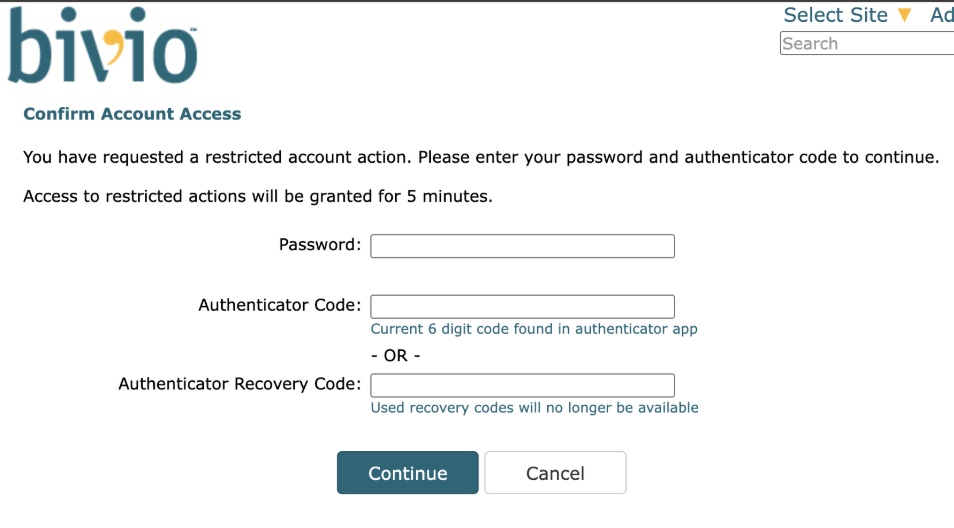
To enable two-factor auth, the user has to confirm access to their account via the following form. This form grants access to so-called "restricted account actions" for a limited time. When two-factor auth is enabled, this form is also required for changing passwords and email addresses, and will include fields for authenticator code and recovery code.
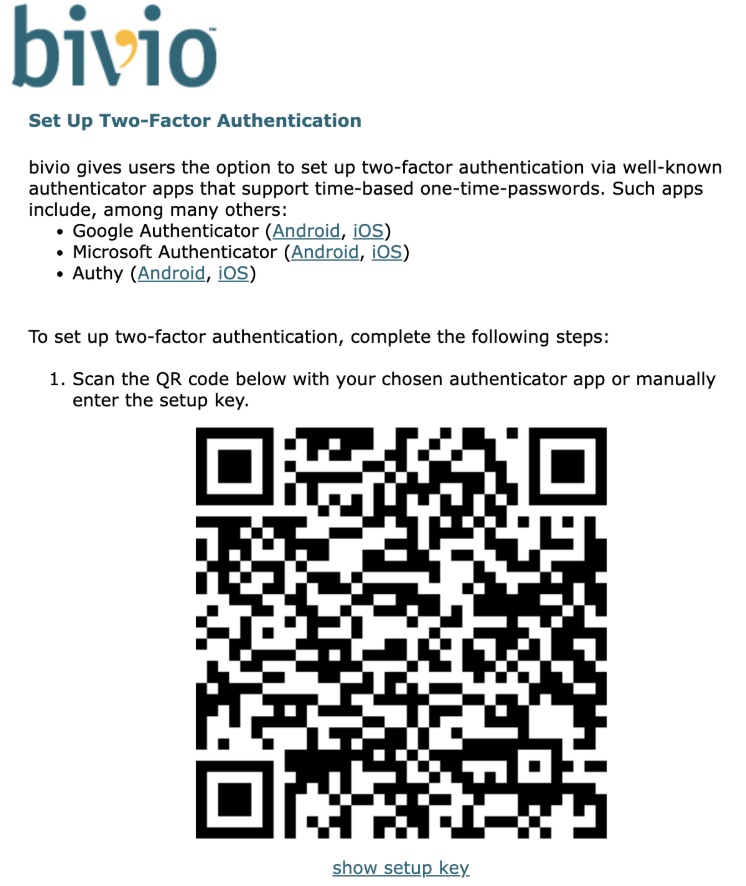
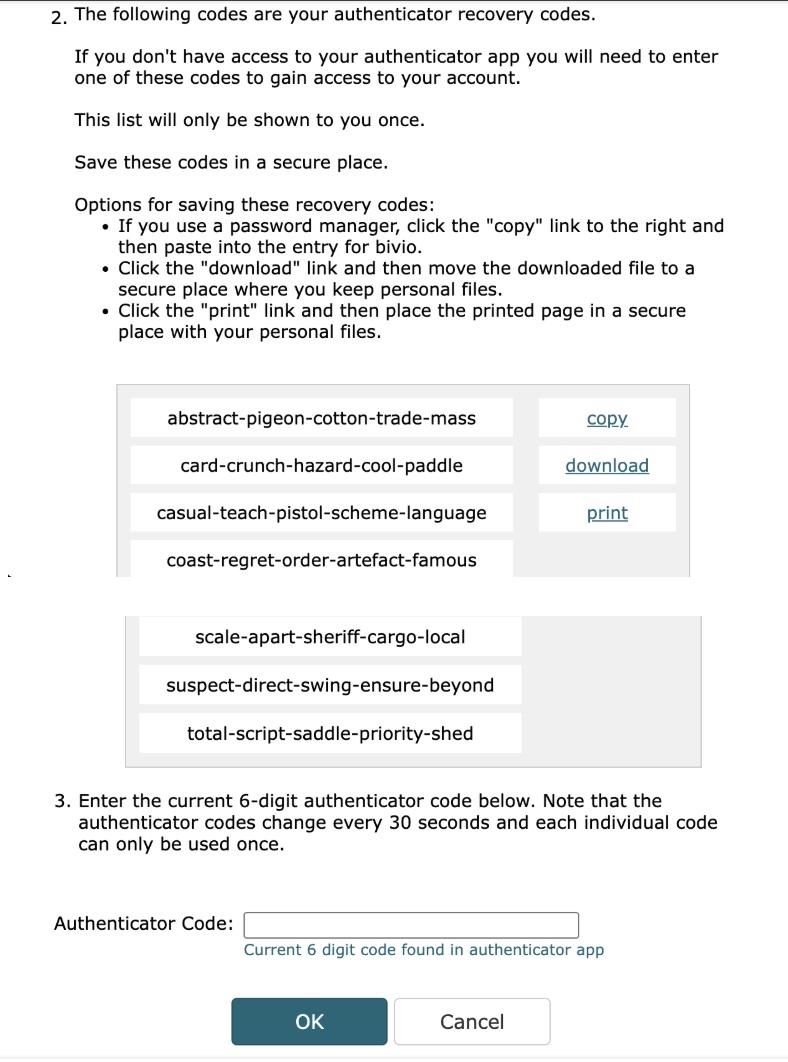
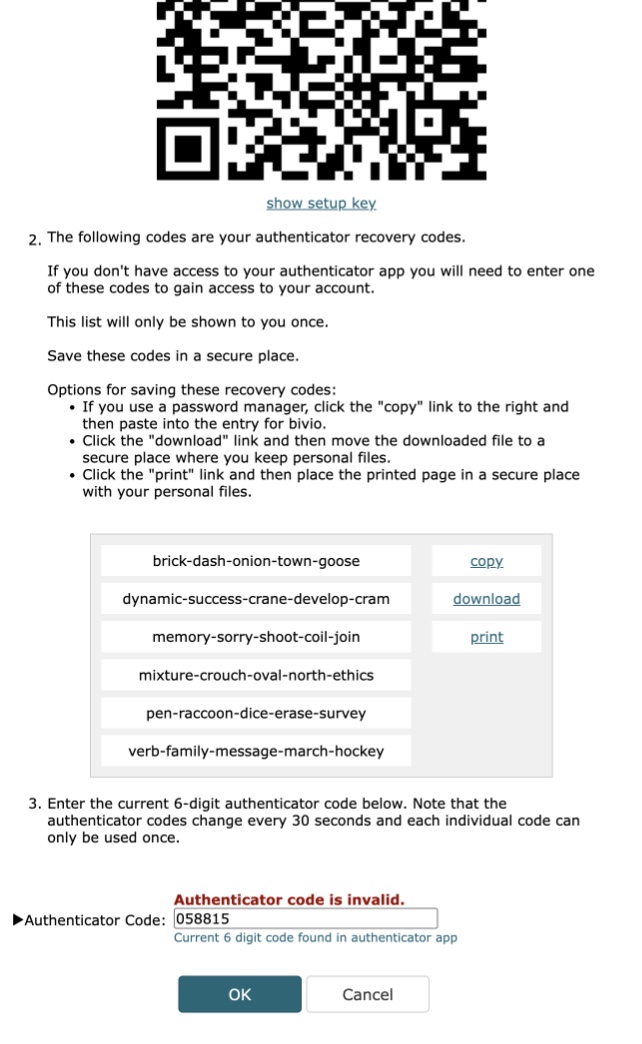
Two-factor auth setup screen:
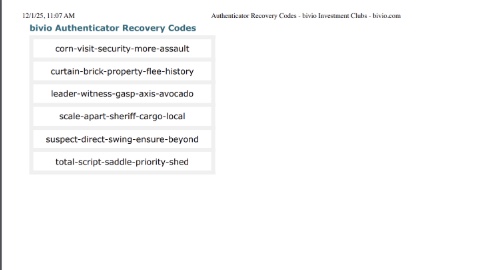
Option to print recovery codes:
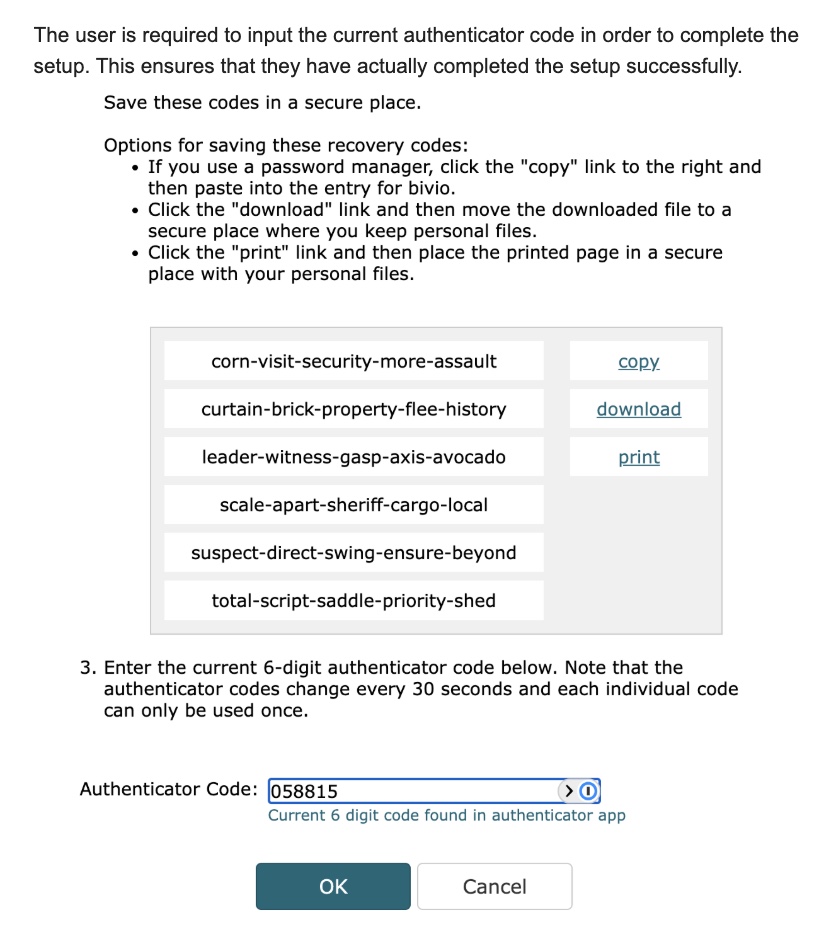
The user is required to input the current authenticator code in order to complete the setup. This ensures that they have actually completed the setup successfully.
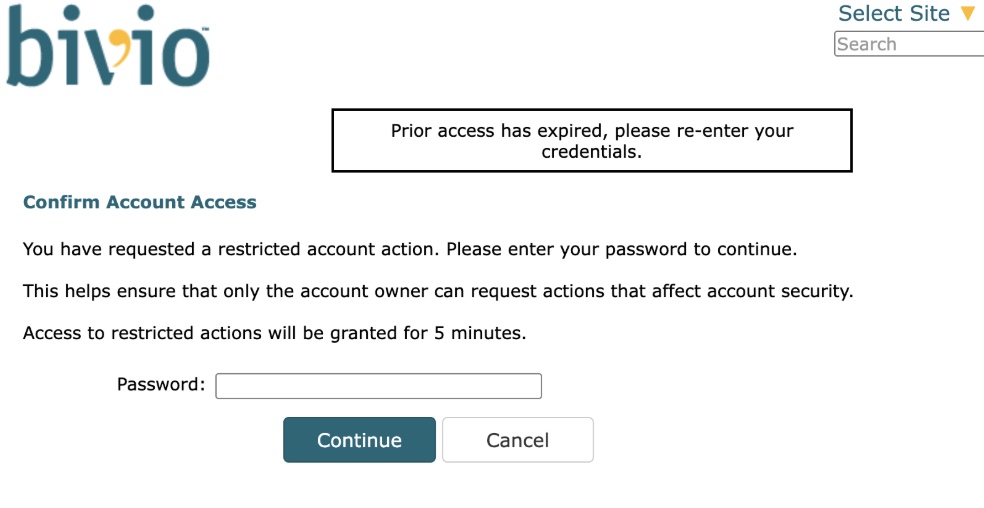
If the user takes more than 5 minutes to complete the setup, they'll have to re-confirm their account access:
Incorrect authenticator code error:
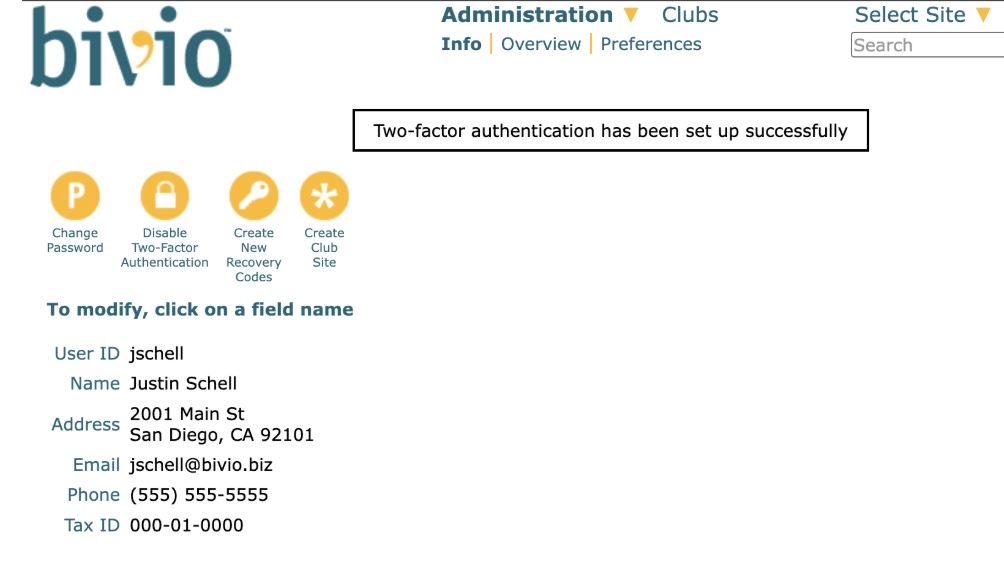
Two-factor auth setup successfully! "Disable Two-Factor Authentication" and "Create New Recovery Codes" actions now available. The latter can be used if the user loses their recovery codes.
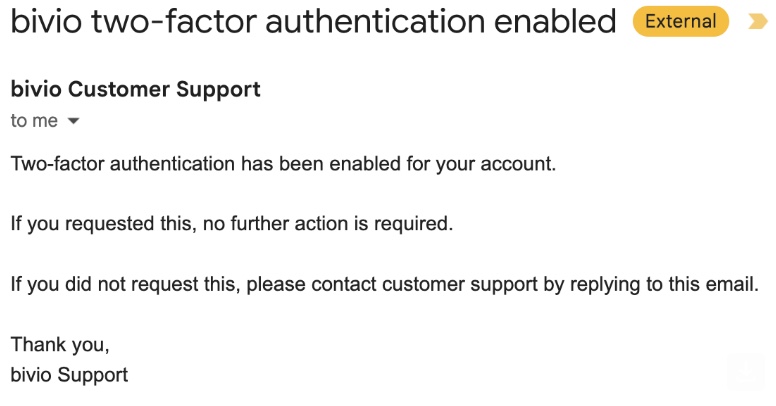
Email sent upon successful setup:
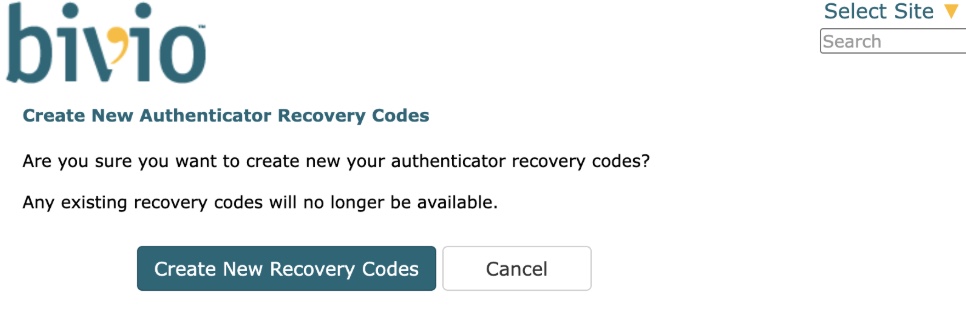
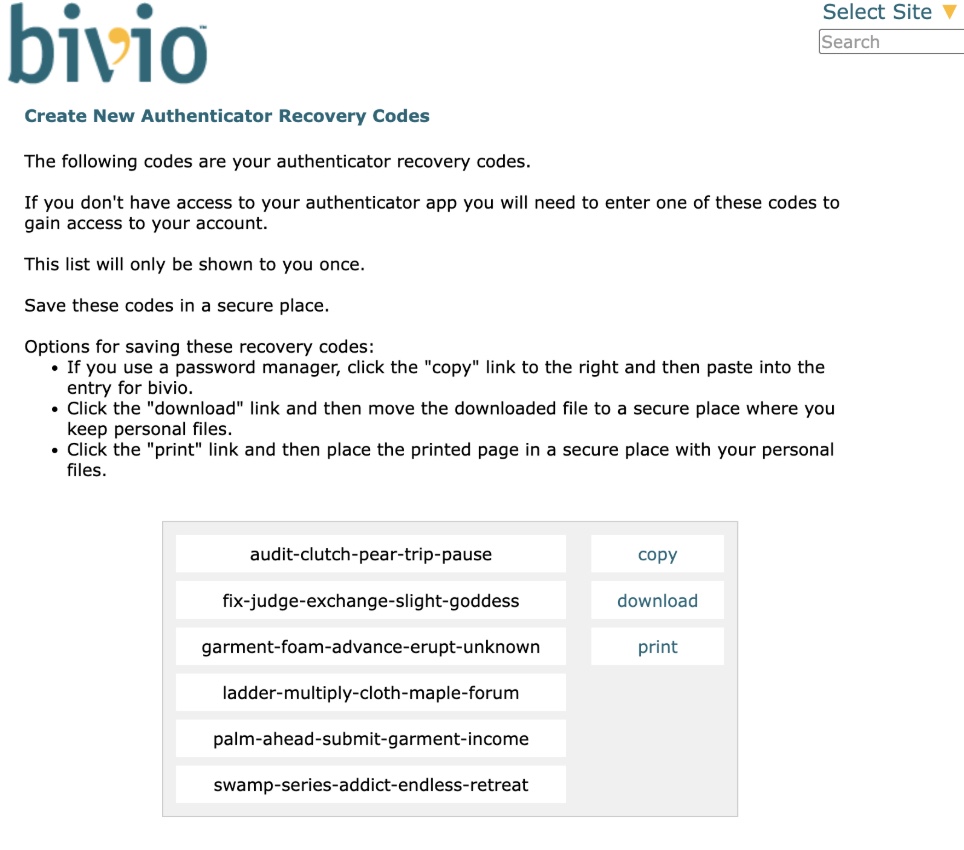
Create New Authenticator Recovery Codes form:
New recovery codes screen. The content here is a subset of what was shown on the setup screen, with the same instructions and copy/download/print options.
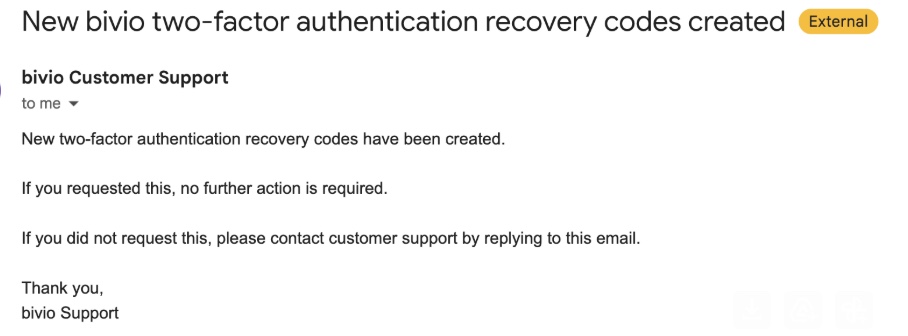
Email sent upon creation of new recovery codes:
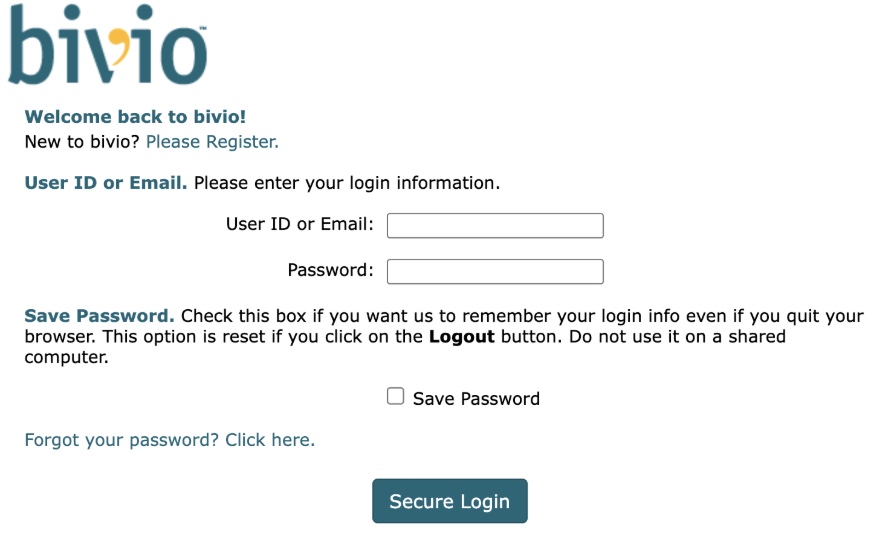
Login screen remains the same whether two-factor auth is enabled or not:
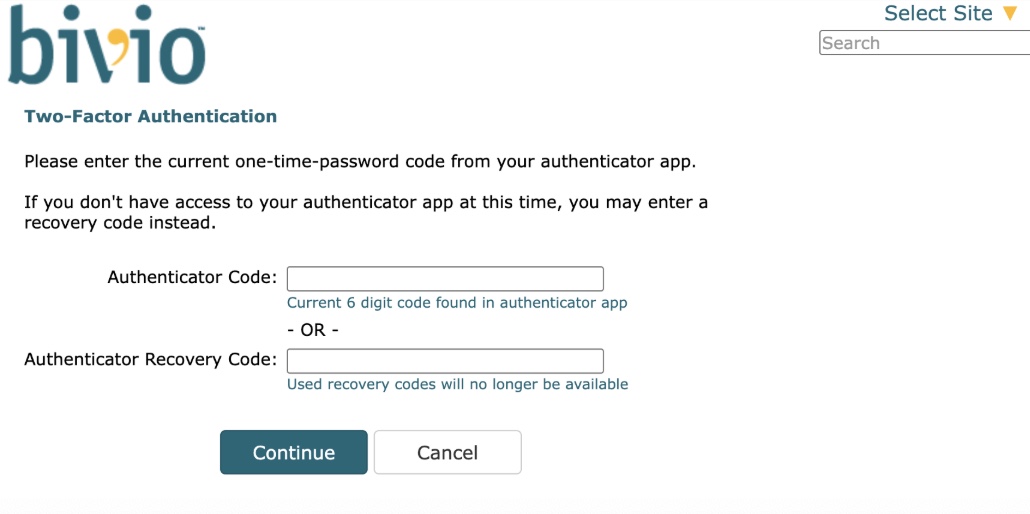
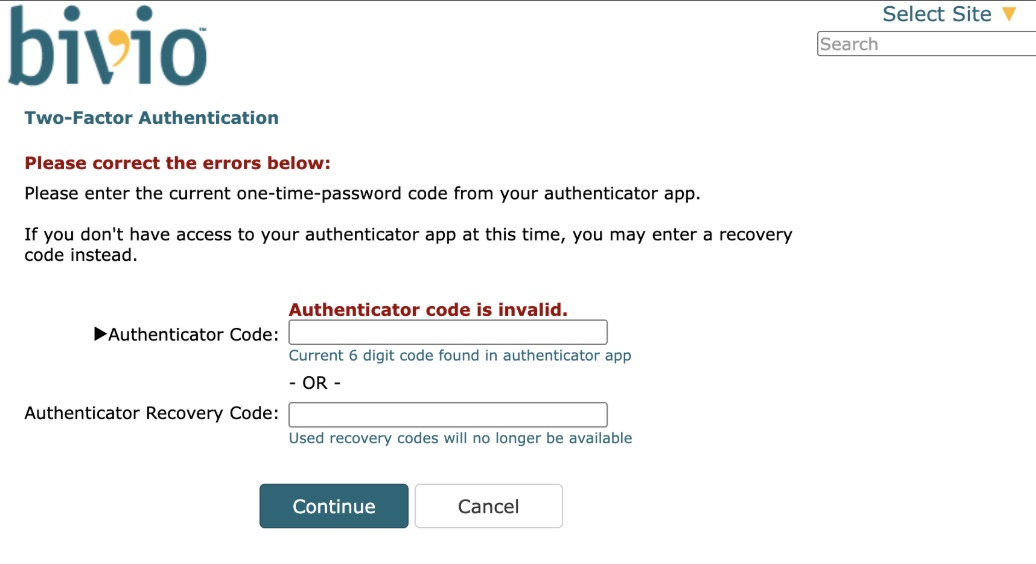
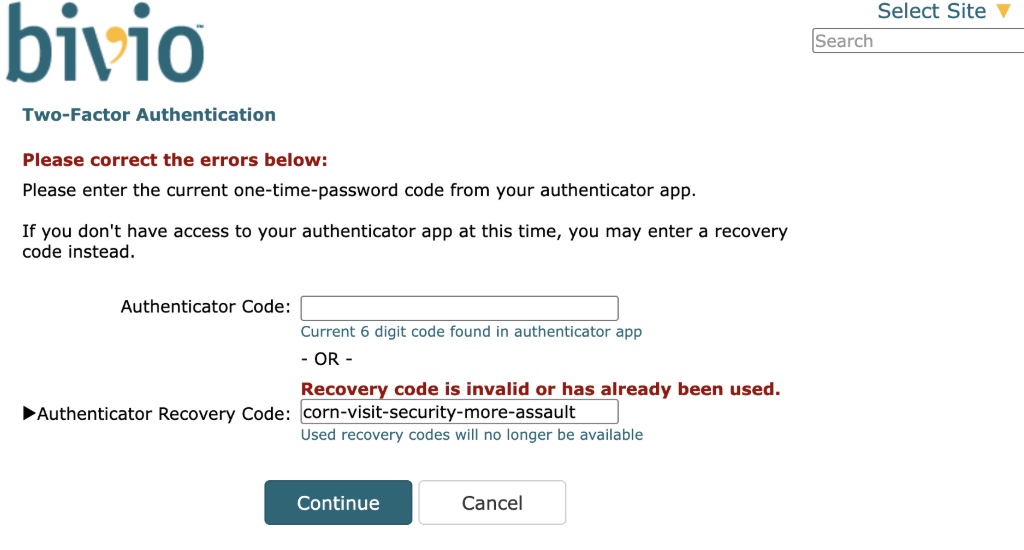
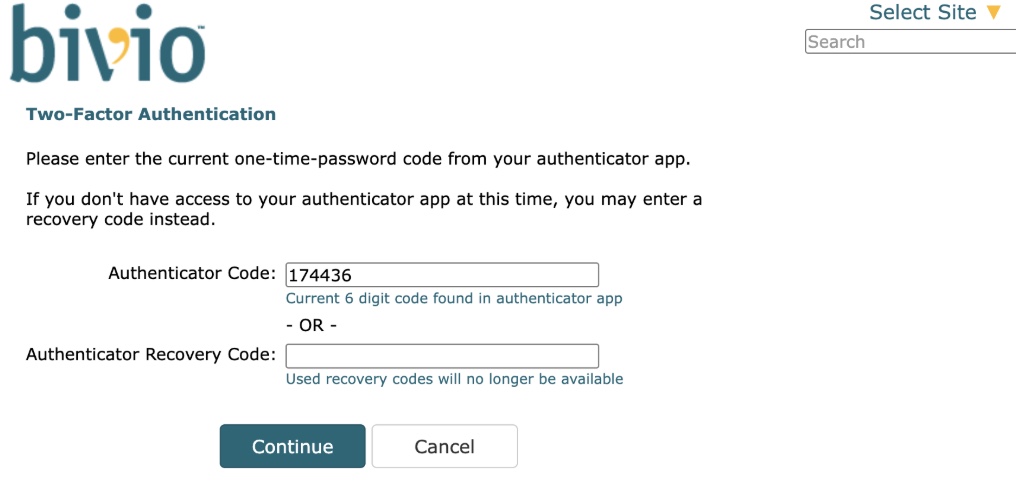
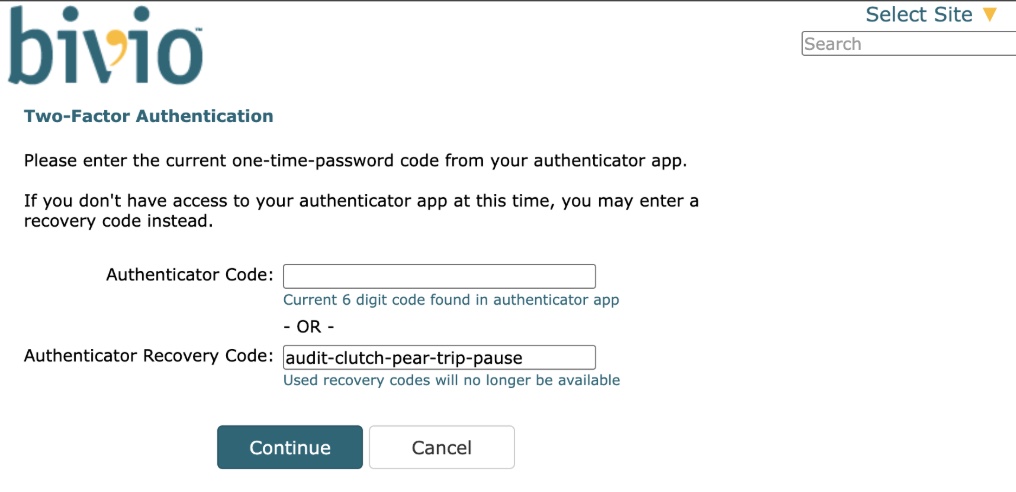
If the user has two-factor auth enabled, they will see this form, which is required to complete the login. The user can enter an authenticator code or recovery code. Recovery codes can only be used once.
Invalid authenticator code error:
Invalid recovery code error:
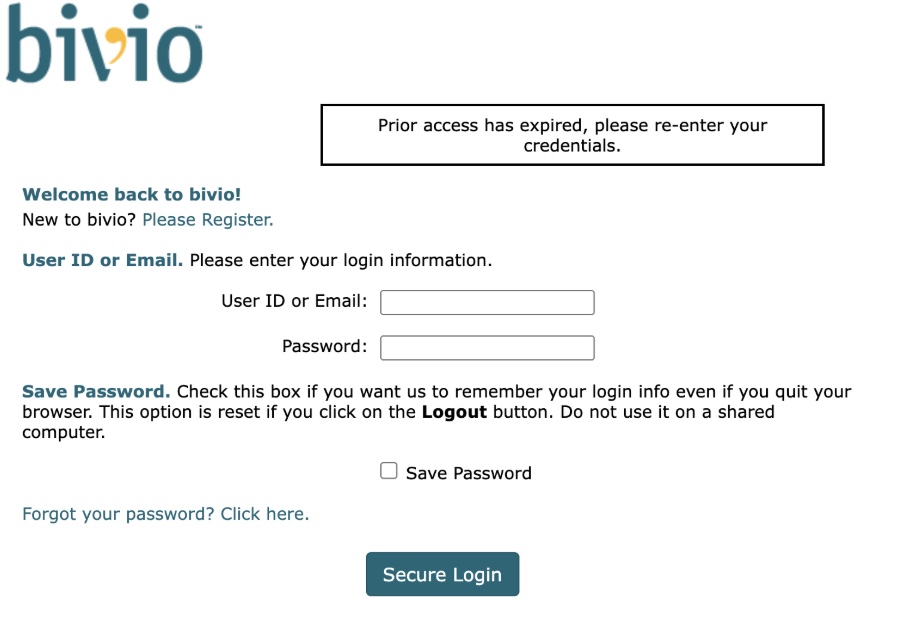
If the user takes more than 5 minutes to enter their authenticator/recovery code, they have to complete the initial login step again:
Login via Authenticator Code:
Login via Authenticator Recovery Code:
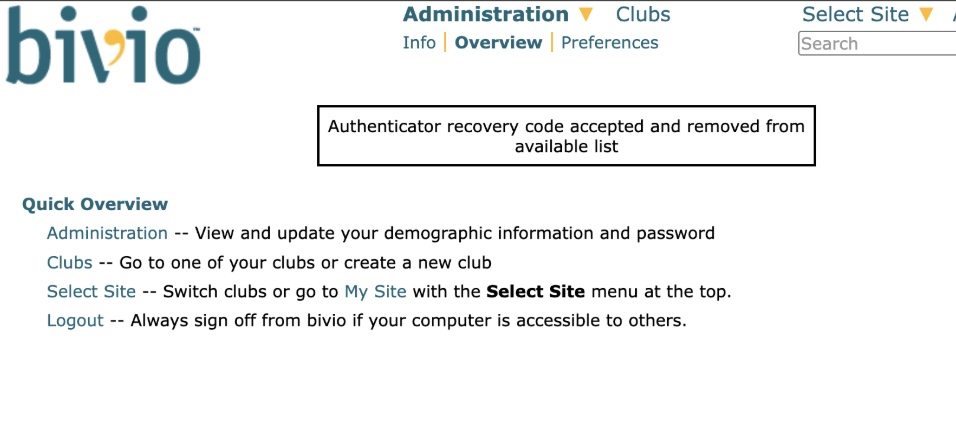
Authentication Recovery Code accepted:
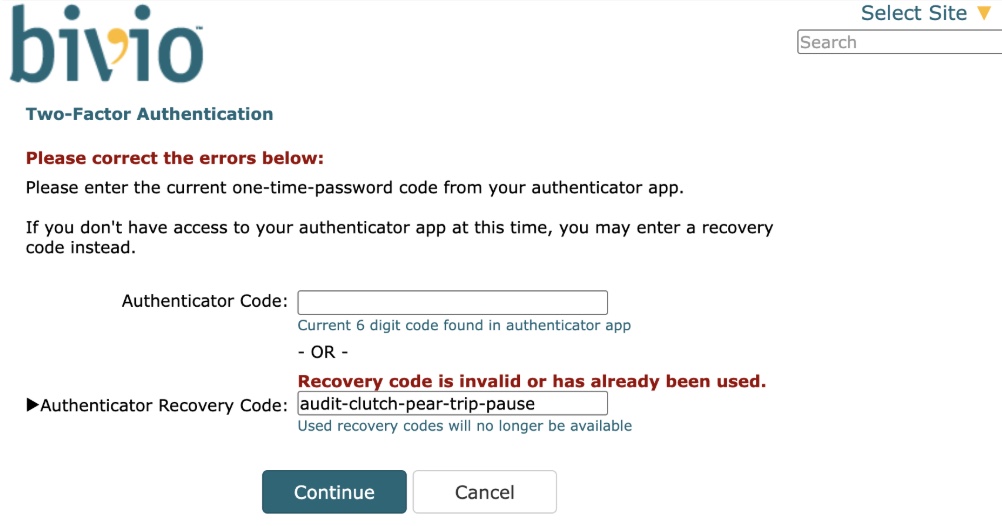
Cannot use the same recovery code again:
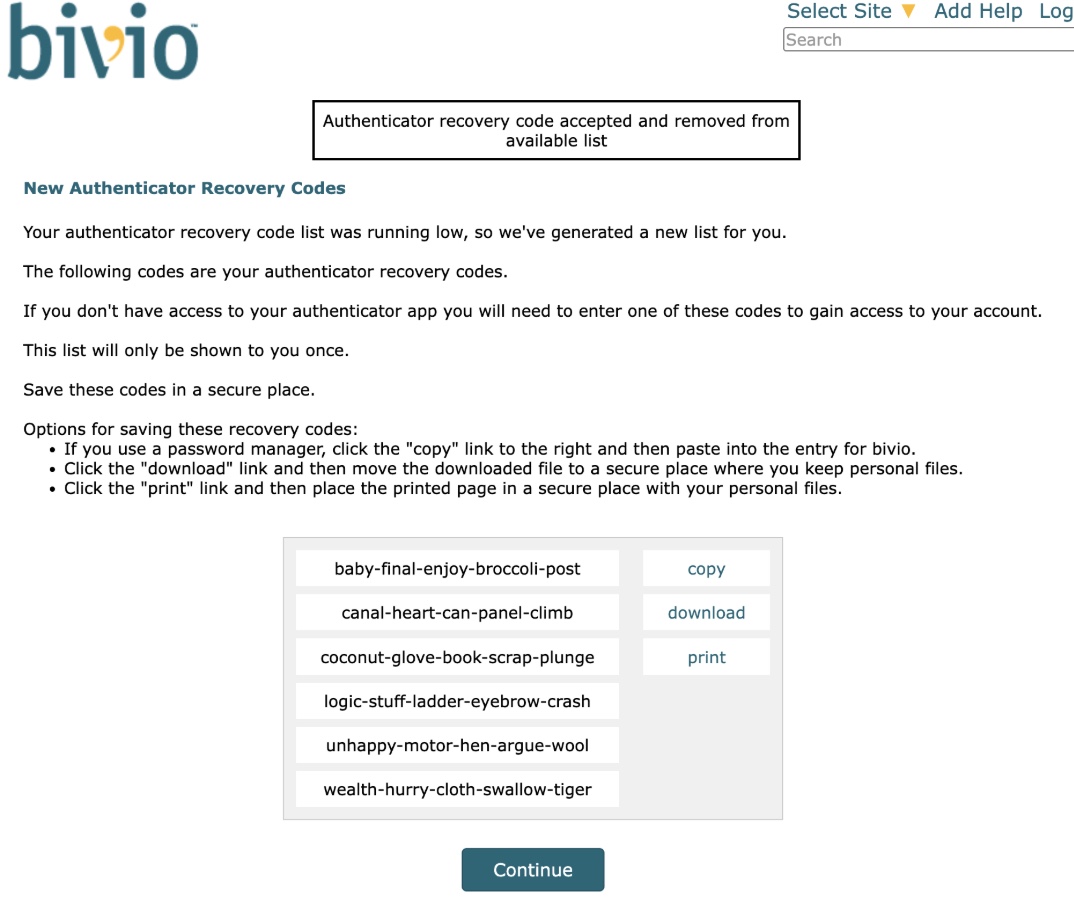
If the user only has one recovery code left, we generate more recovery codes:
To disable two-factor auth, the user is required to confirm their account access, which now requires an authenticator/recovery code:
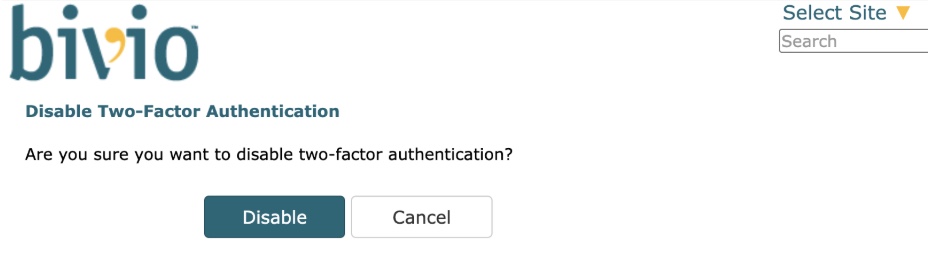
Confirm disablement:
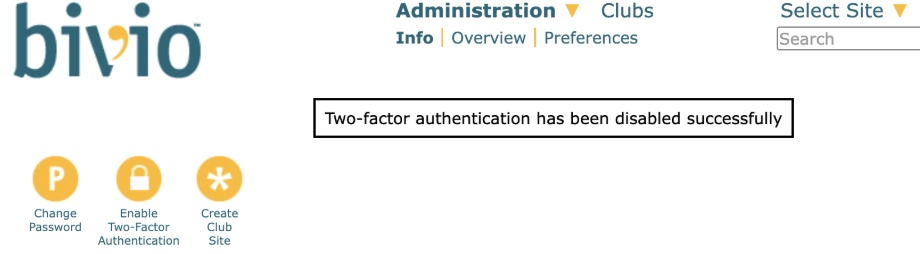
Disabled successfully:
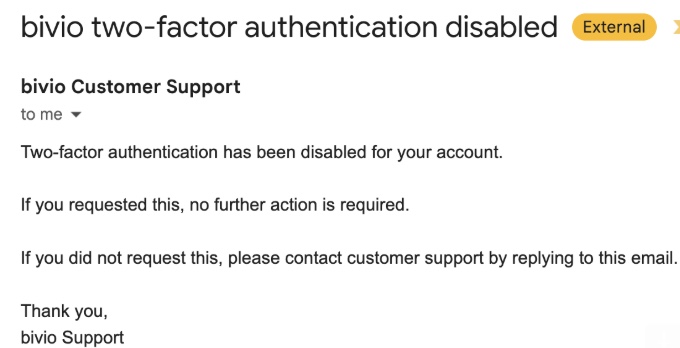
Email sent upon two-factor auth disablement:
Note that long-term, changing passwords and email addresses should result in an email being sent to the user (to both new email address and old, in the case of changing the email address), but I haven't made that change yet.
Two-factor functions also available for the logged-in member in the roster member "modify" action:
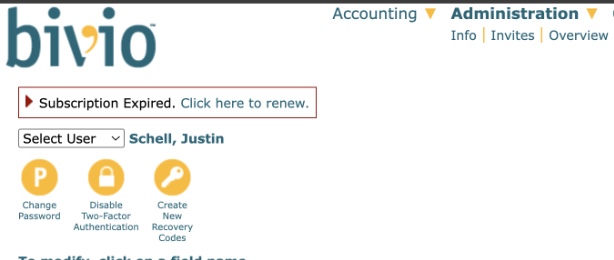
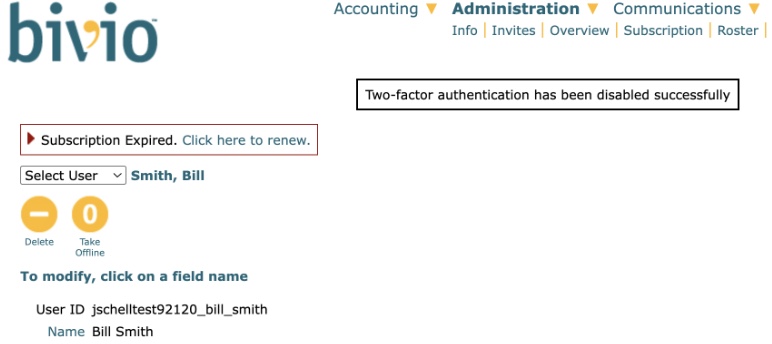
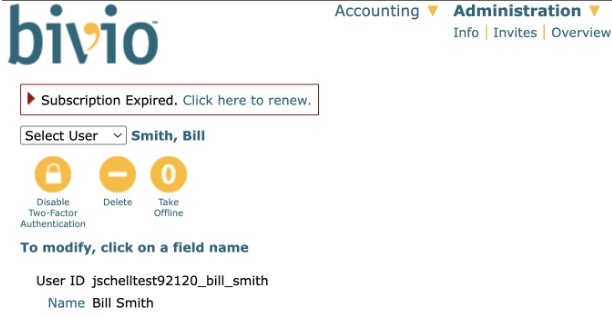
Also, club admins that have two-factor enabled themselves are allowed to disable two-factor for club members. This should provide a good way for users to resolve losing access to their authenticator and recovery codes on their own:
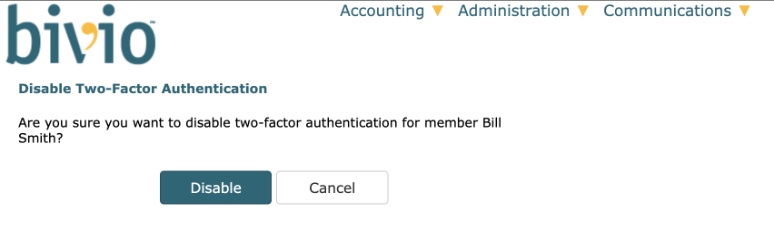
Confirm disablement for member:
Disabled successfully: