Two Factor Authentication Setup
Two-Factor Authentication Setup
Two-factor authentication is an enhanced bivio security option available to individual club members. After enabling two-factor authentication, each time you log into bivio you need to confirm your login with an authentication code. You can use an authenticator application on your mobile device or an authenticator feature in your password manager or other software to generate the authentication code.
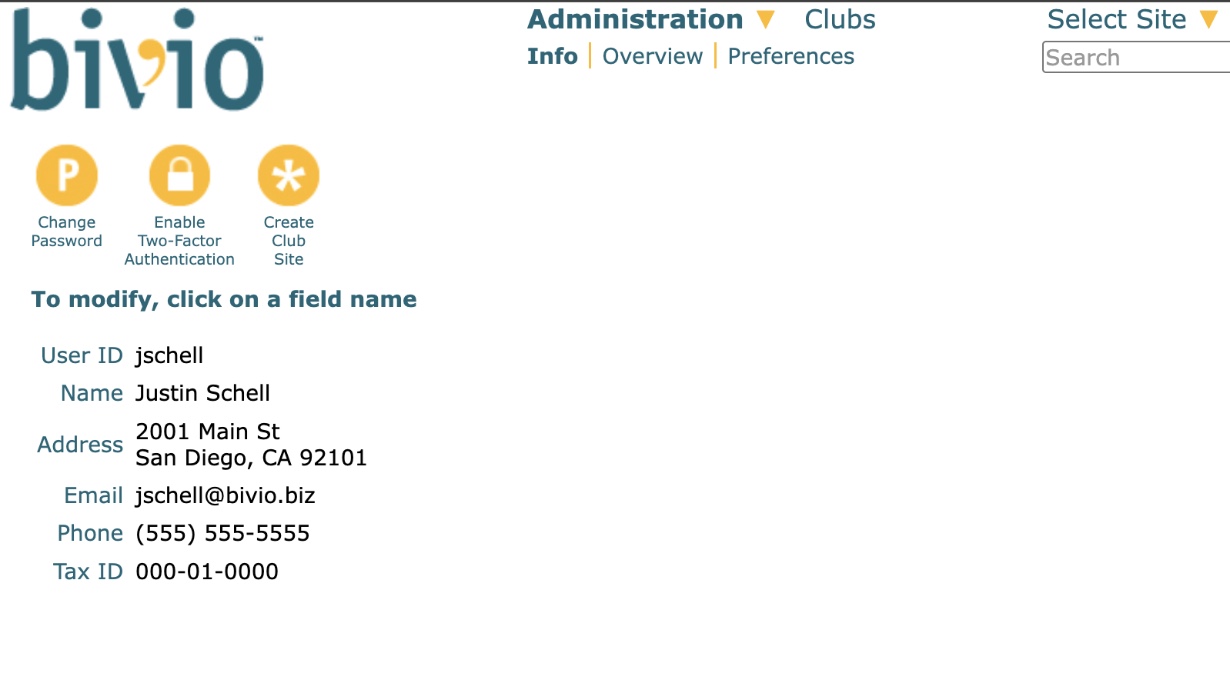
To enable two-factor authentication, log into bivio and select Administration>Roster. Click on your name and then click the yellow padlock icon to enable two-factor authentication.
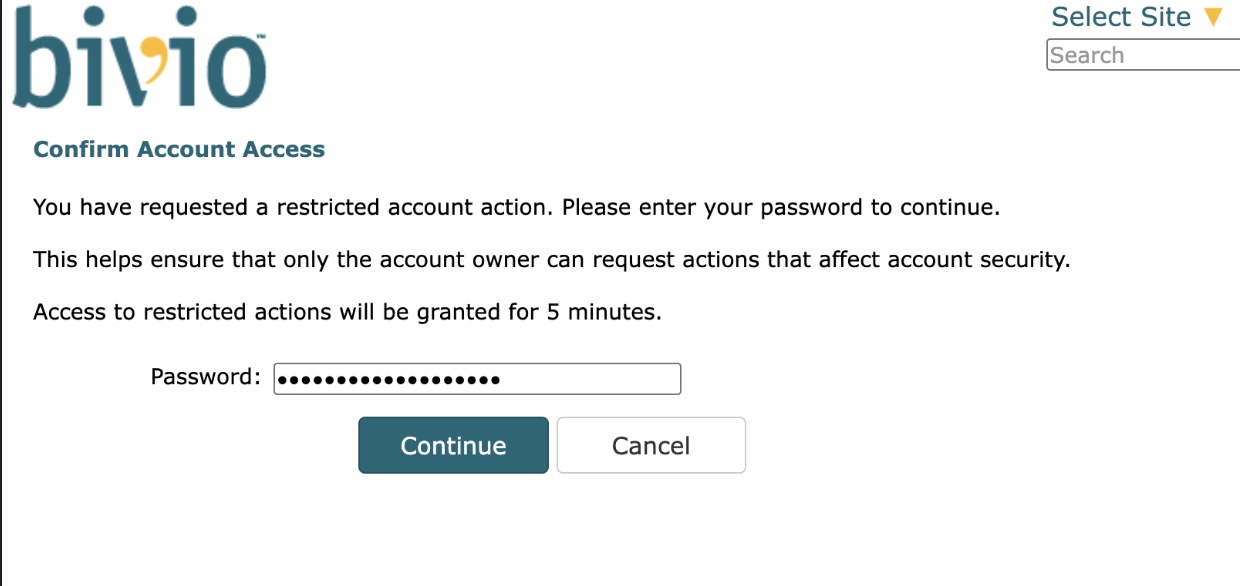
Enter your bivio password.
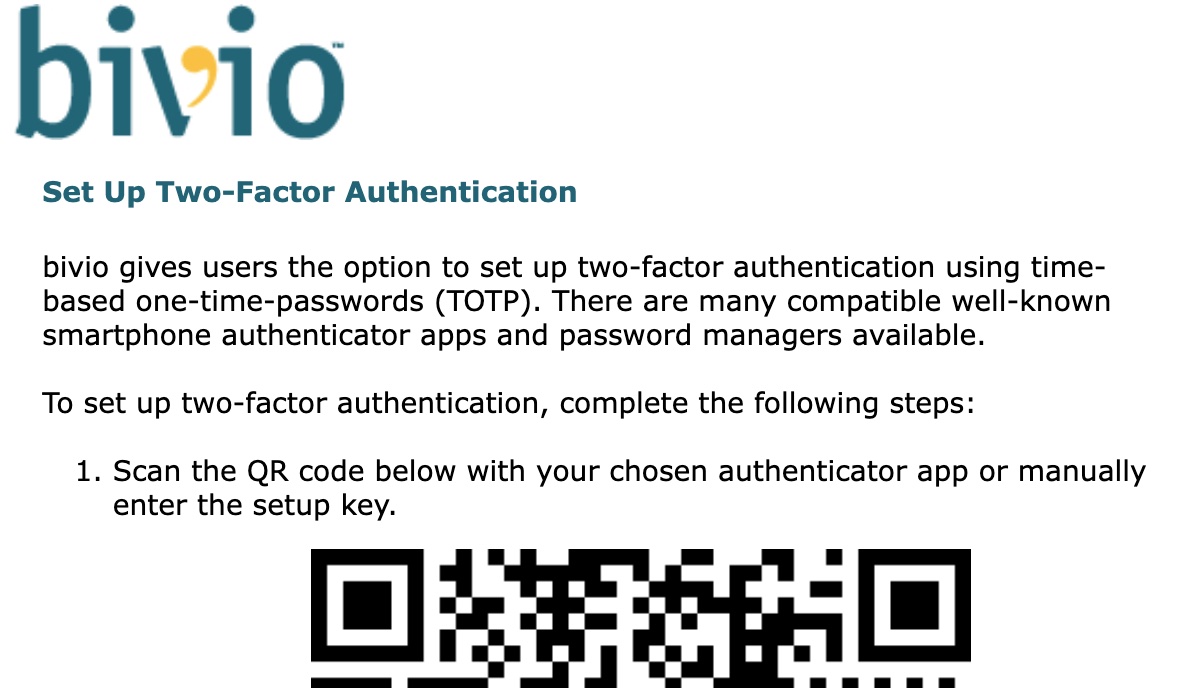
This is the top section of the bivio screen that will display. Continue following the instructions below. They refer to this screen.
You may already have an authenticator in a dedicated app or password manager on your mobile device or computer. If not, install an authenticator application like one of these on your mobile device (free):
Passwords ( iOS )
Or install a password manager like one of these to your computer or mobile device (may require a subscription to access the authenticator feature):
Open the your authenticator app and click "Add a code" or a "+" icon to add an authenticator code. These are instructions are for Google Authenticator. The steps may be different in your authenticator app.
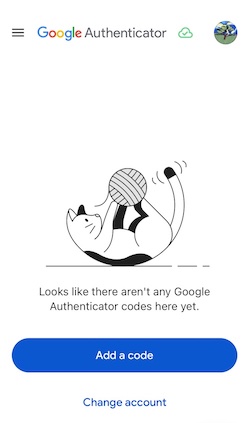
Select "Scan a QR code".
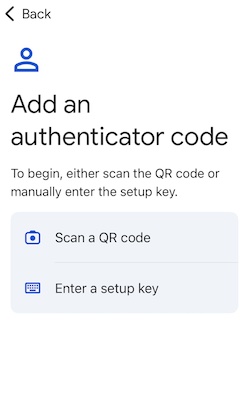
Point your mobile device at your bivio screen and scan the QR code that is on the bivio screen.
If you are unable to scan the QR code, click "Show Setup Key" (located below the QR code) and type the bivio setup key into the authenticator app on your mobile device.
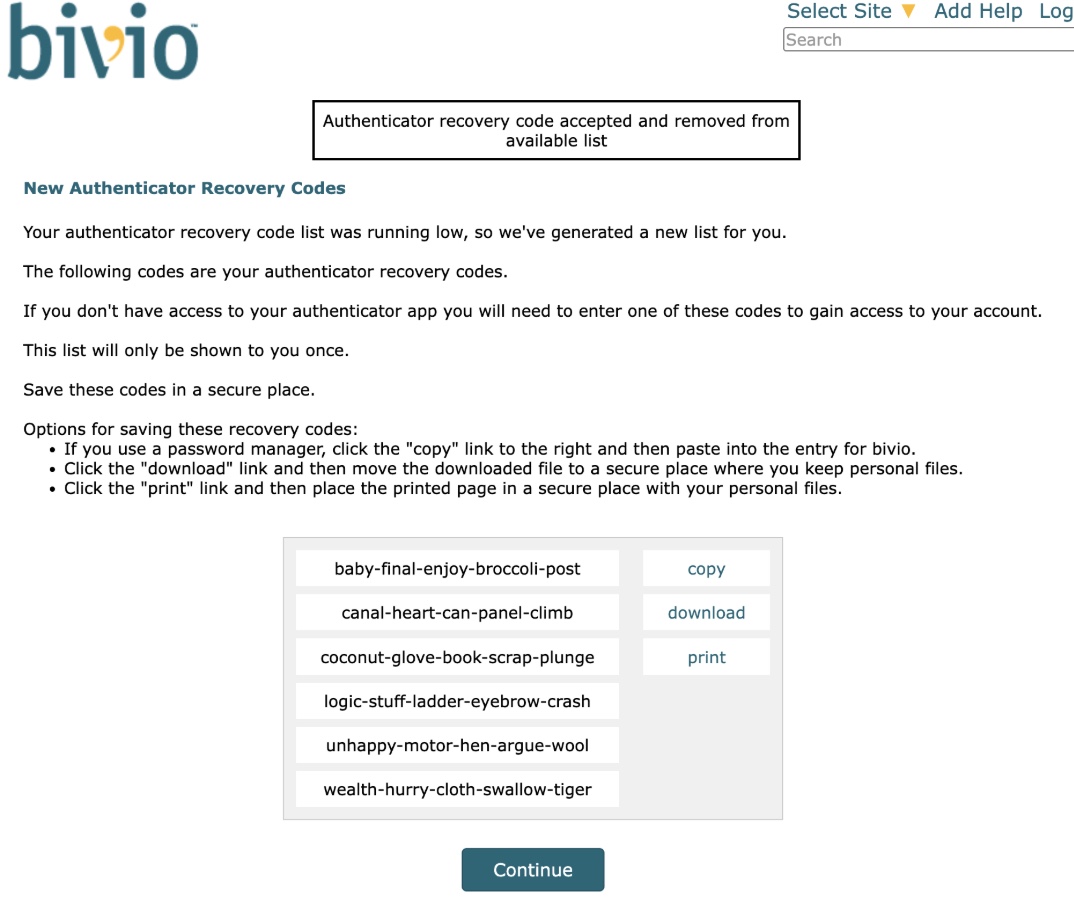
Your list of personal bivio authenticator recovery codes are shown on the bivio screen. Your list will be different than the one shown below. If you are ever unable to use your authenticator app you need to enter one of your recovery codes. This list is shown to you only once, so it is VERY important that you print them and/or save the codes in a secure place. Follow these steps to save them now:
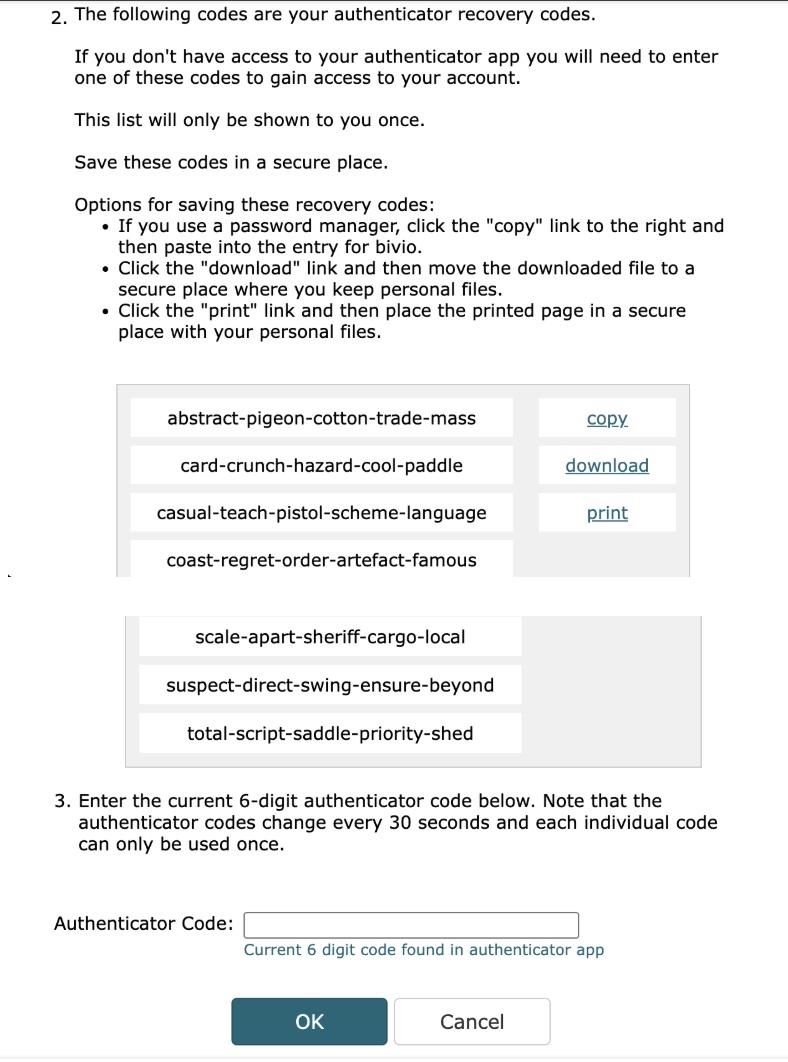
The authenticator app on your mobile device continuously generates a new 6-digit authentication code every 30 seconds. Type the authenticator code currently shown in the bivio authenticator code field and click OK.
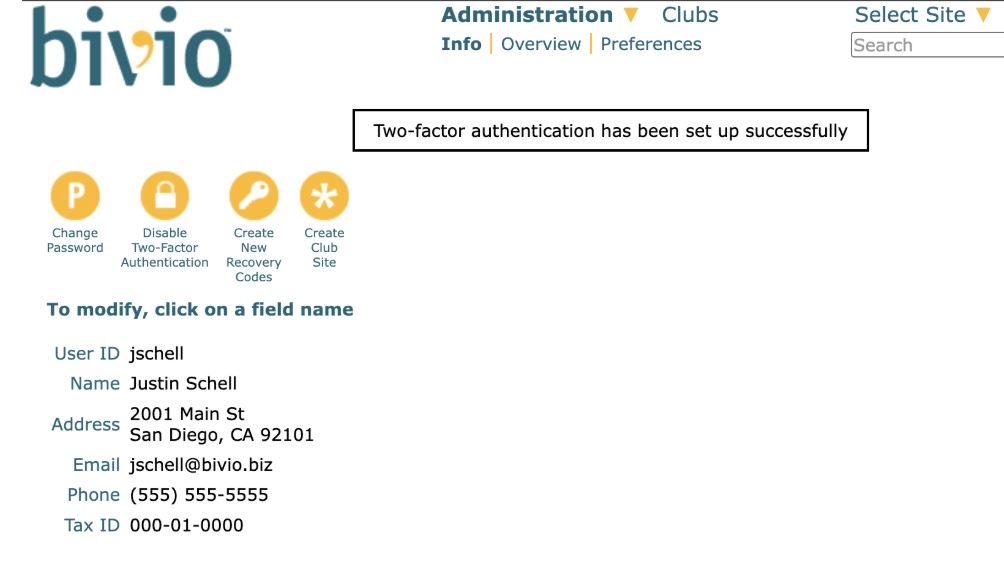
Look for this message on the bivio screen: "Two-factor authentication has been set up successfully," You will also receive a confirmation email from bivio.
Using Two-Factor Authentication
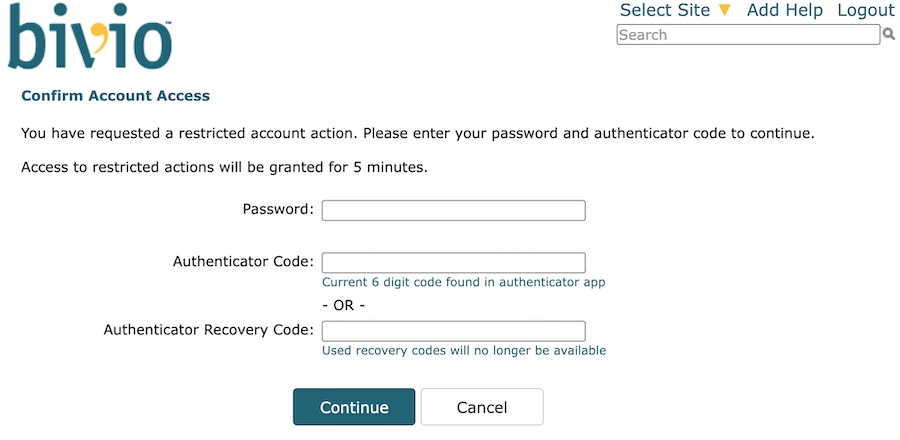
When two-factor authentication is enabled, you may be prompted for your password or authentication code or recovery code whenever you do any of the following restricted account actions:
Log into bivio
Change your bivio password or email address
Create a new list of recovery codes for two-factor authentication
Disable or re-enable two-factor authentication
Recovery Codes
If you are unable to use an authenticator app to create an authenticator code, you can enter one of your recovery codes from the list that you saved or printed. Each recovery code can only be used once. If you have one recovery code left, more recovery codes will automatically be generated. Print and/or save the new list of recovery codes. You will receive an email from bivio confirming that new codes were generated.
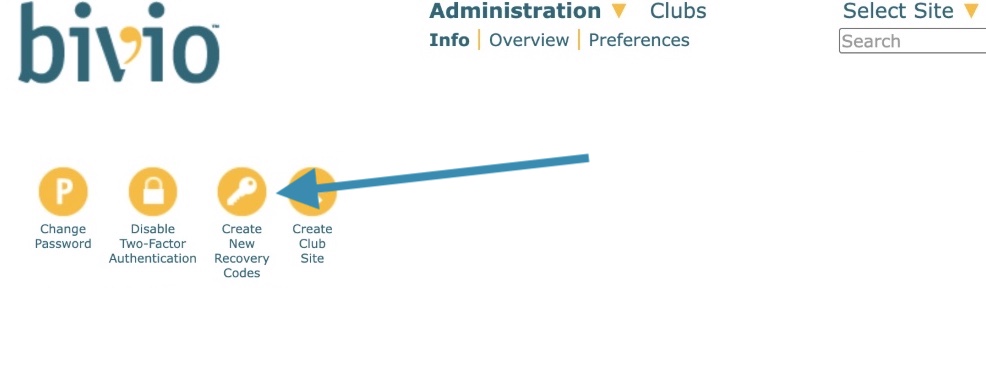
To create a new list of recovery codes at any time, select Administration>Roster, select your name, and click the yellow "Create New Recovery Codes" icon.
Disable Two-Factor Authentication
To disable two-factor authentication in bivio select Administration>Roster. Click your name and click the yellow padlock icon to disable two-factor authentication.
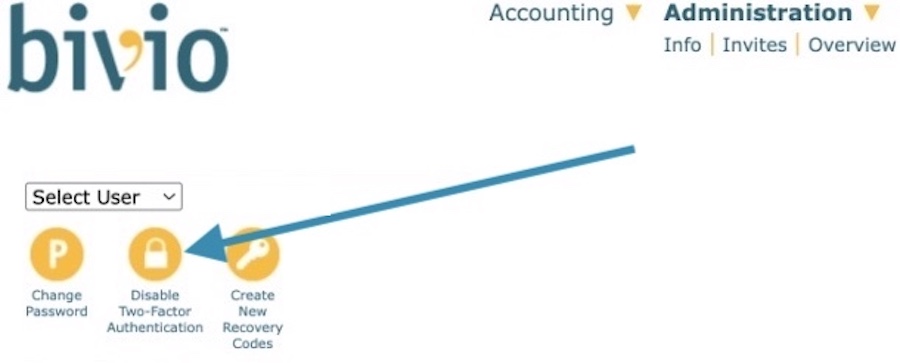
If required, verify your account access by entering your bivio password and an authenticator code or recovery code. Confirm that you want to disable two-factor authentication.
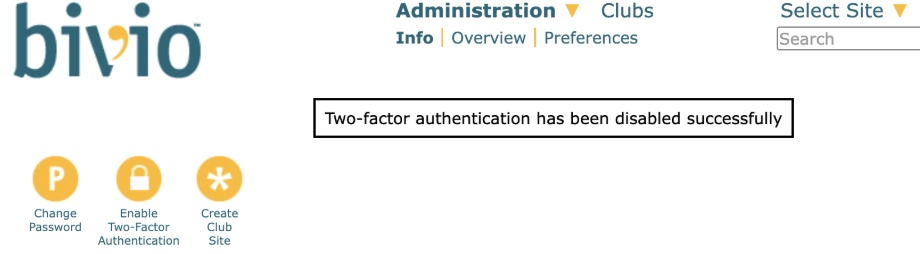
Look for the notification on your bivio screen. You will also receive a confirmation email from bivio.
If you later cannot log in to bivio because you are unable to use your authenticator and don't have your recovery codes, contact one of your bivio club officers. A club officer who has two-factor authentication enabled (or sets it up now for their own account) is authorized to disable two-factor authentication for club members. To do this they select Administration>Roster, select the member's name and click "Disable two-factor authentication." This enables you to log in with only you email and password. If you want two-factor authentication going forward, follow the setup instructions in this article once again.
Email support@bivio.com if you have questions.