AccountSync Fidelity Setup
Fidelity Data Access via SnapTrade
Fidelity now only makes transaction data available through external data providers. To continue to provide clubs with automatic Fidelity transaction import through AccountSync, bivio has partnered with SnapTrade. Clubs can link their accounts now through the process outlined below.
You will be redirected to Fidelity's own system where you will enter your Fidelity login credentials. These login credentials are not available to, nor stored by bivio. We will only be given access to read account data such as balance, transactions, and holdings. We will not be able to take any actions using the club's account.
There is no additional charge for linking accounts via SnapTrade.
Connecting bivio AccountSync to a Fidelity Brokerage Account
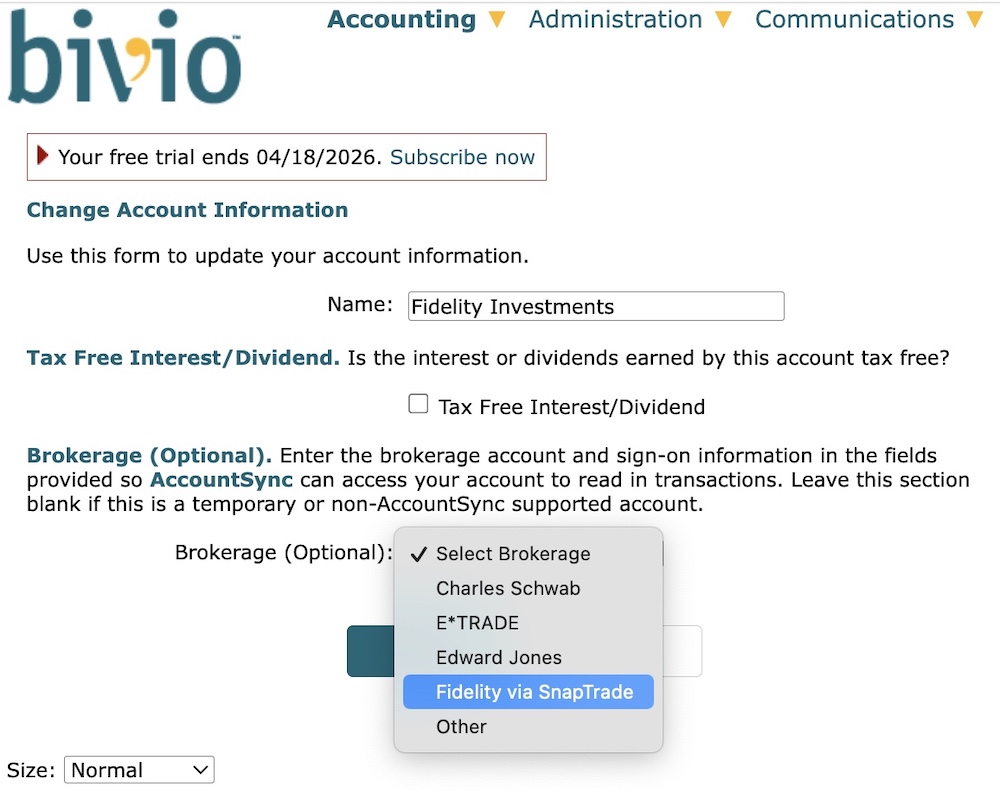
Login to your club in bivio.com and select Accounting>Accounts. At the right of your Fidelity account click "info". If you are switching from another broker to Fidelity, create a new account for Fidelity in bivio by clicking the yellow "Create" icon and type Fidelity in the Name field.
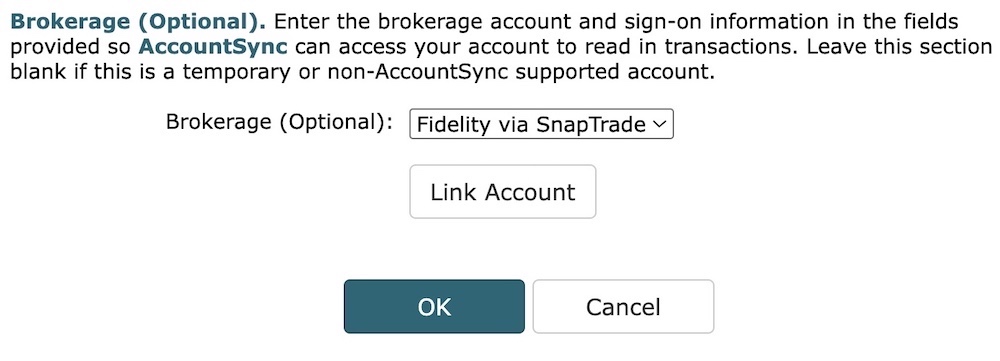
Select "Fidelity via SnapTrade" from the drop-down box titled "Brokerage (Optional)". The page will refresh and it may be a short time before the "Link Account" button appears.
Click the Link Account button, which will redirect you to SnapTrade authorizations.
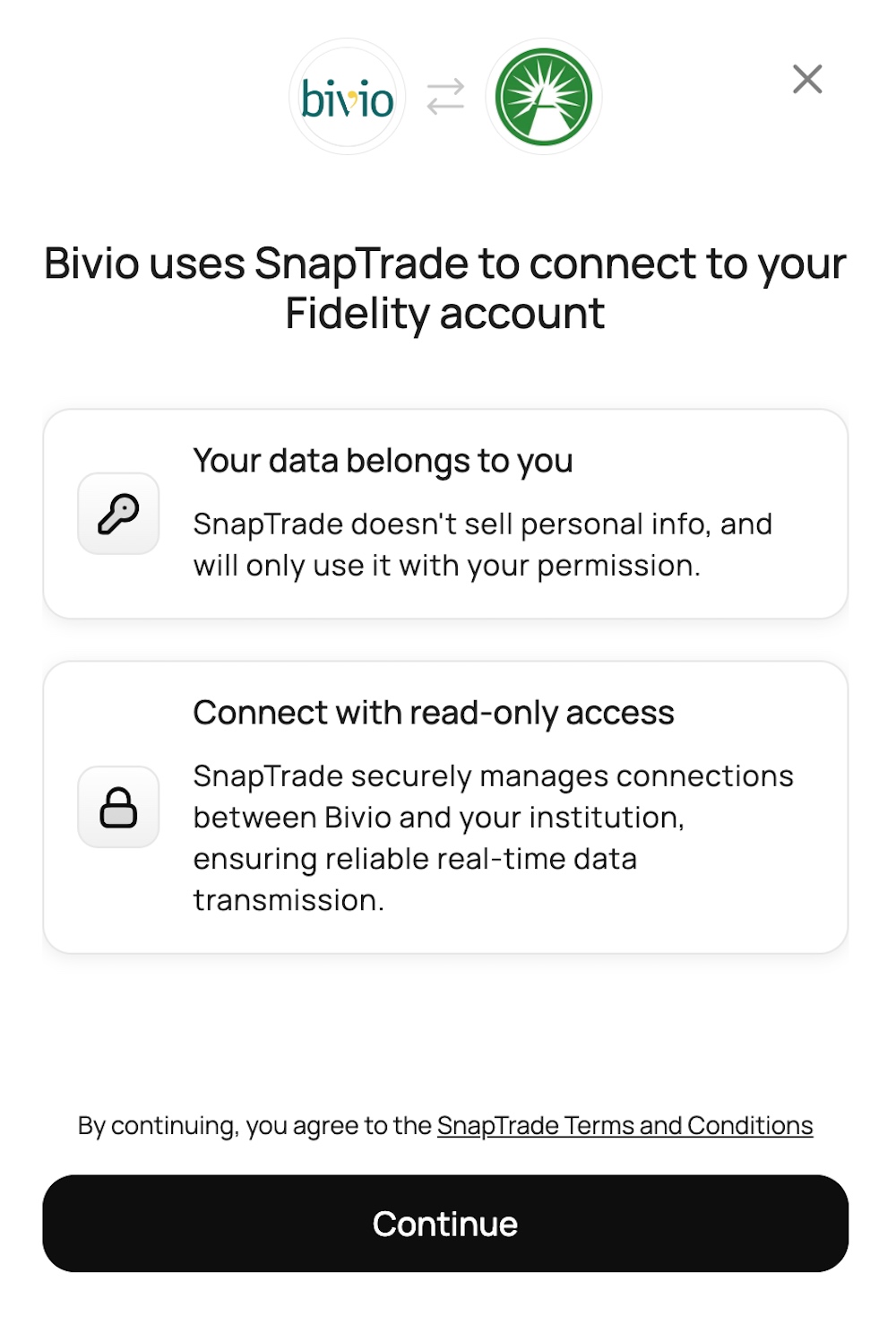
To agree to the SnapTrade Terms and Conditions, click Continue.
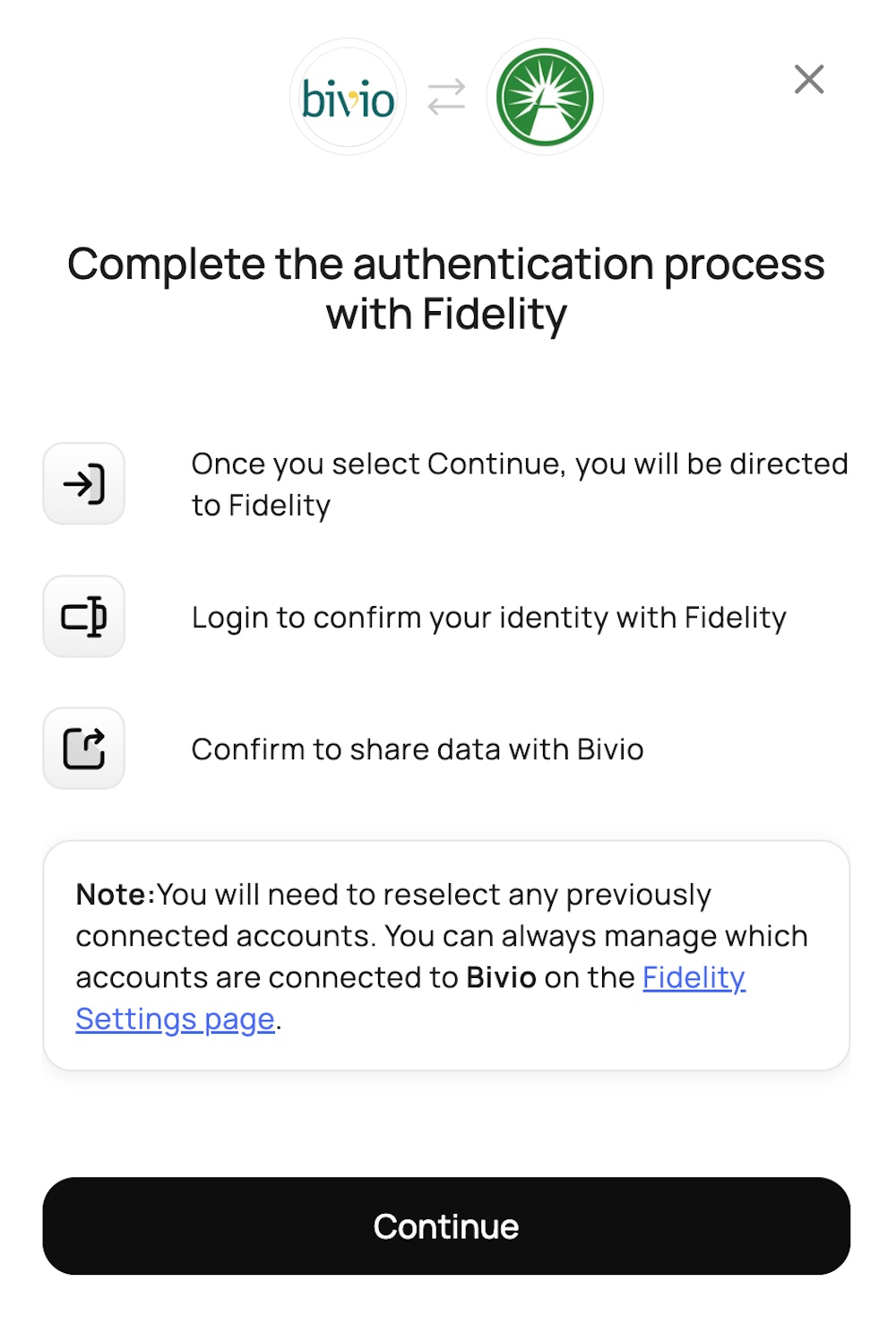
Click Continue to complete the authentication process with Fidelity.
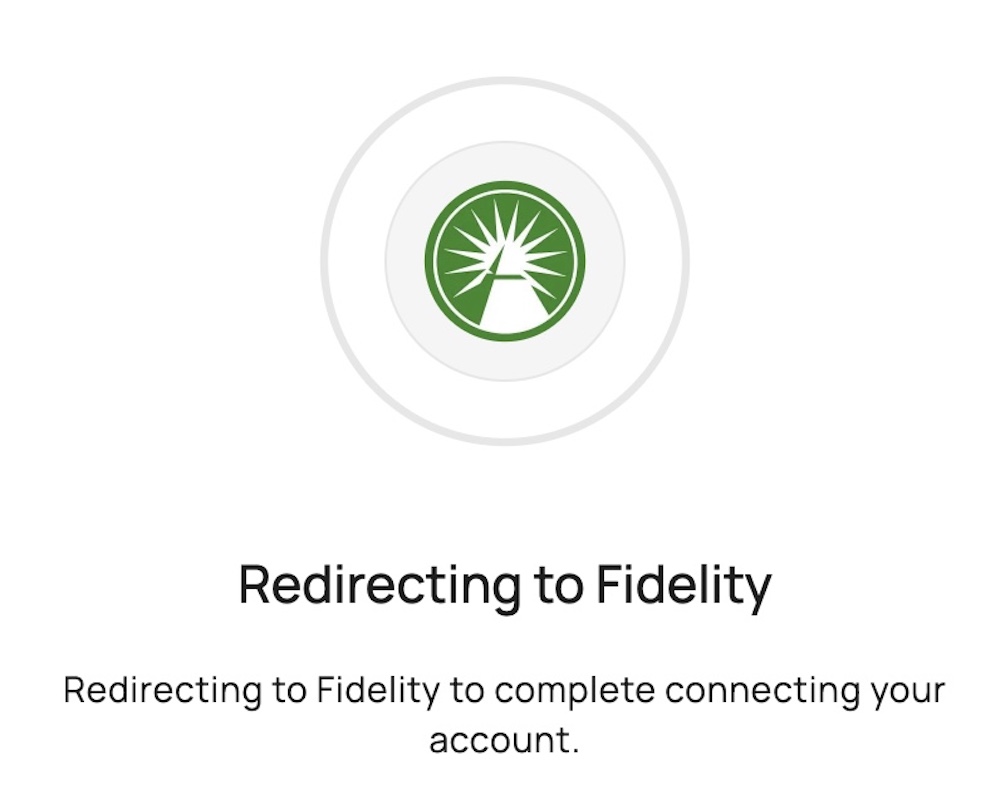
Wait while you are being redirected to Fidelity.
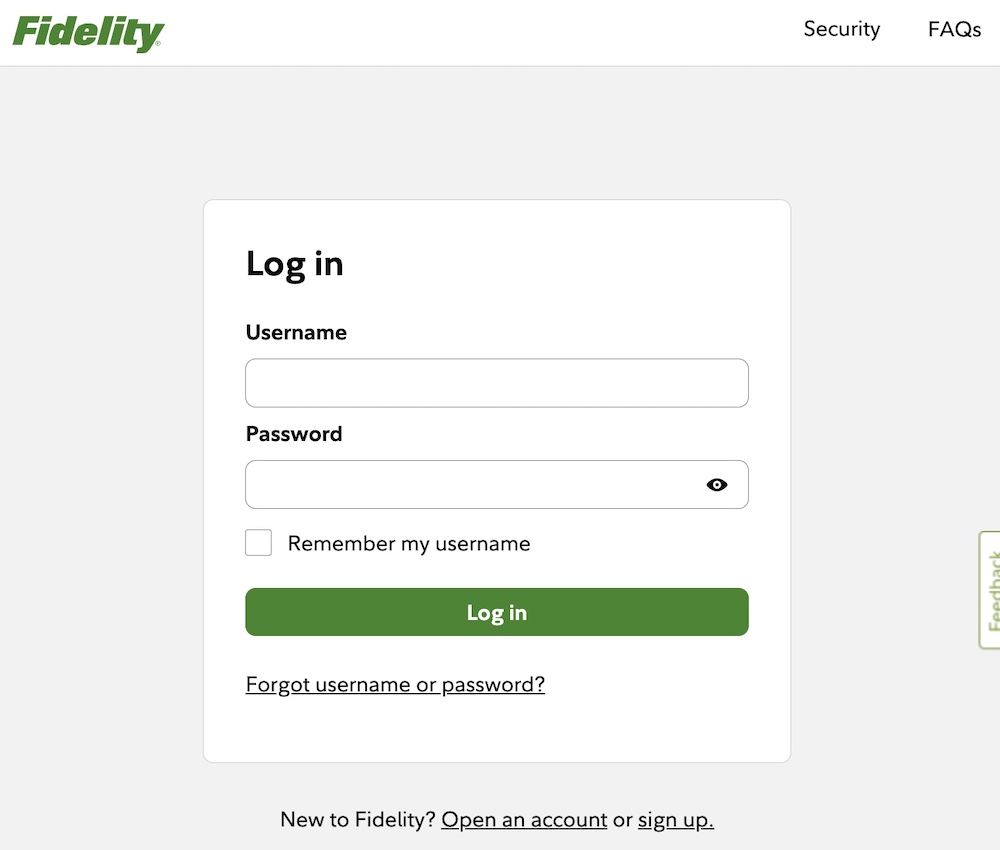
Login to your Fidelity account with your Fidelity Login ID and Password (not your bivio login)
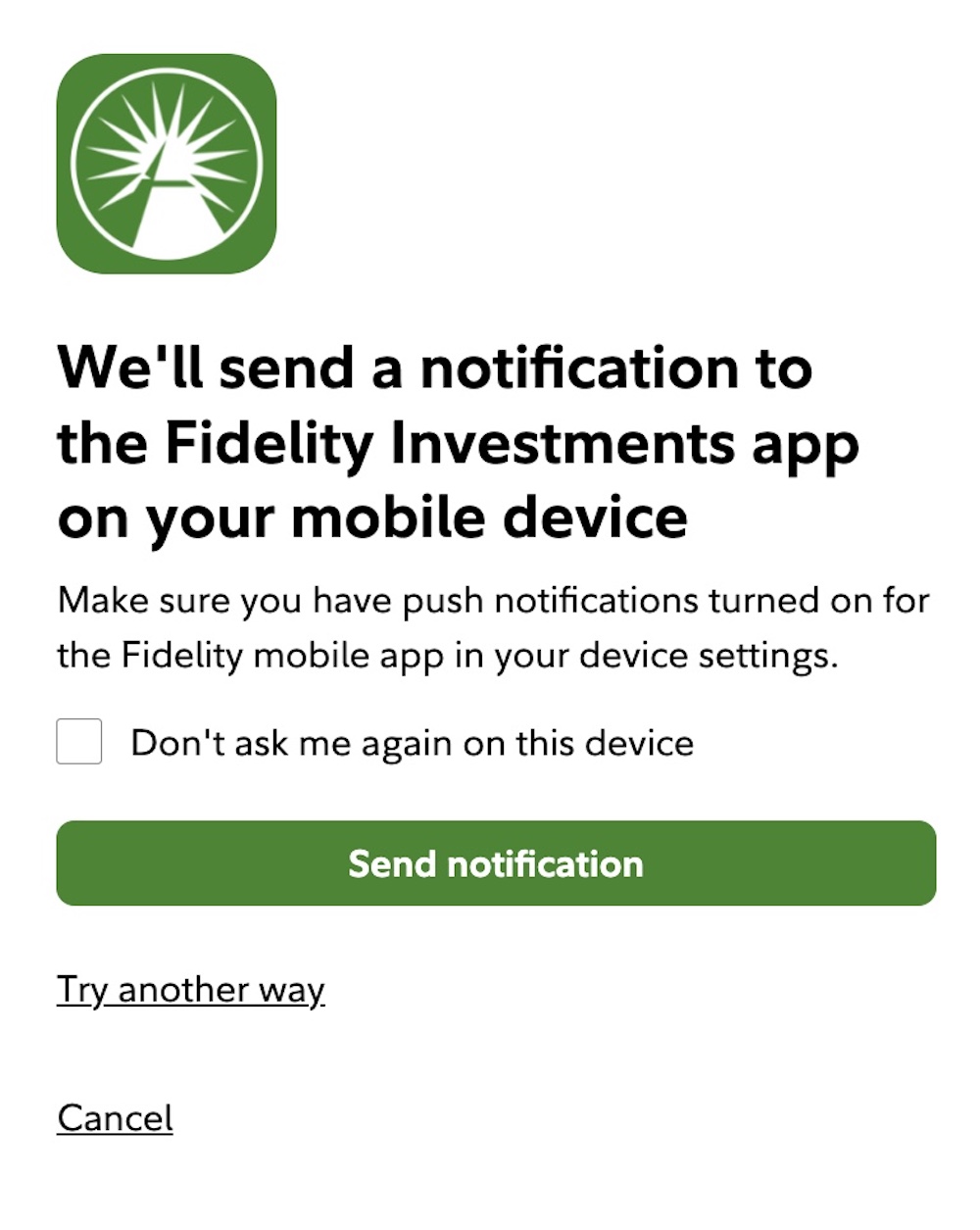
Complete any Fidelity account authentication procedures, if required.
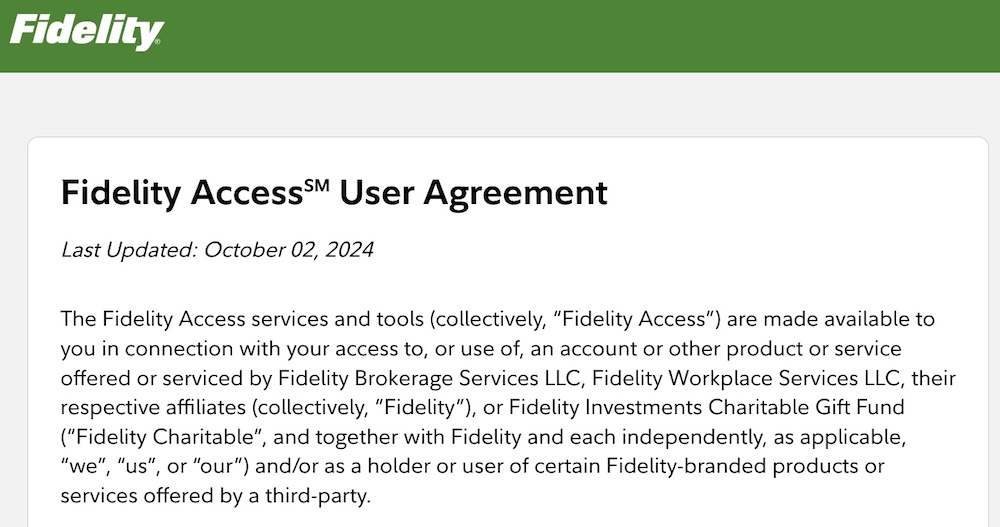
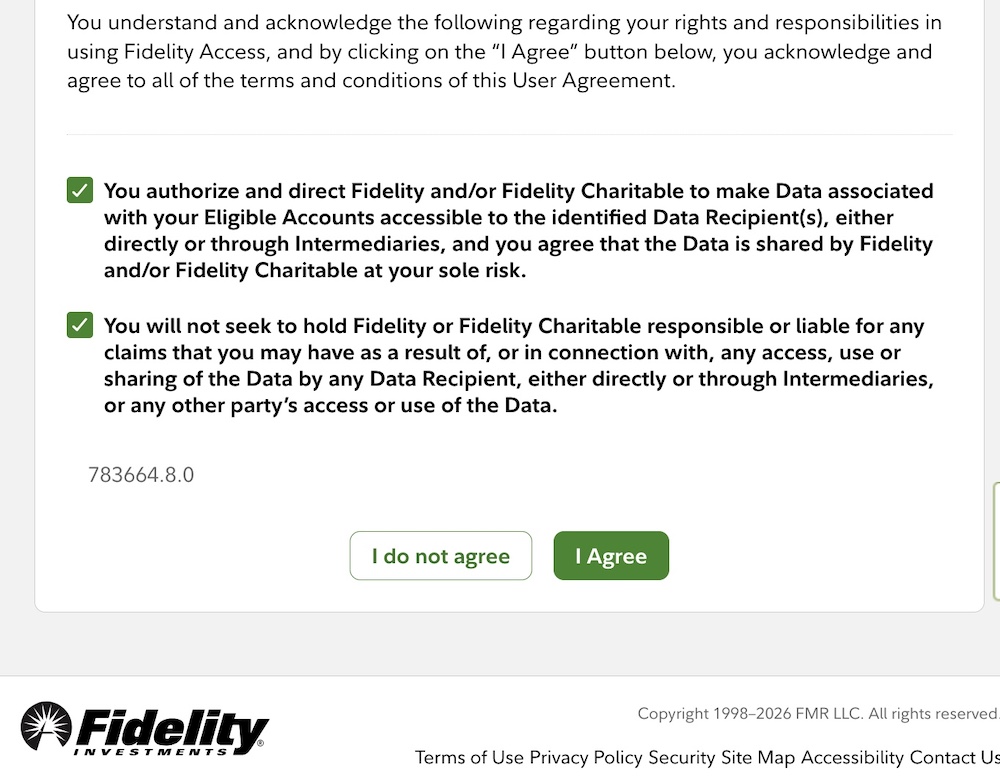
Read the Fidelity Access User Agreement information and scroll to the bottom of this page.
At the Bottom of the consent page, check both boxes to authorize Fidelity to grant bivio access to Fidelity account information and click the I Agree button.
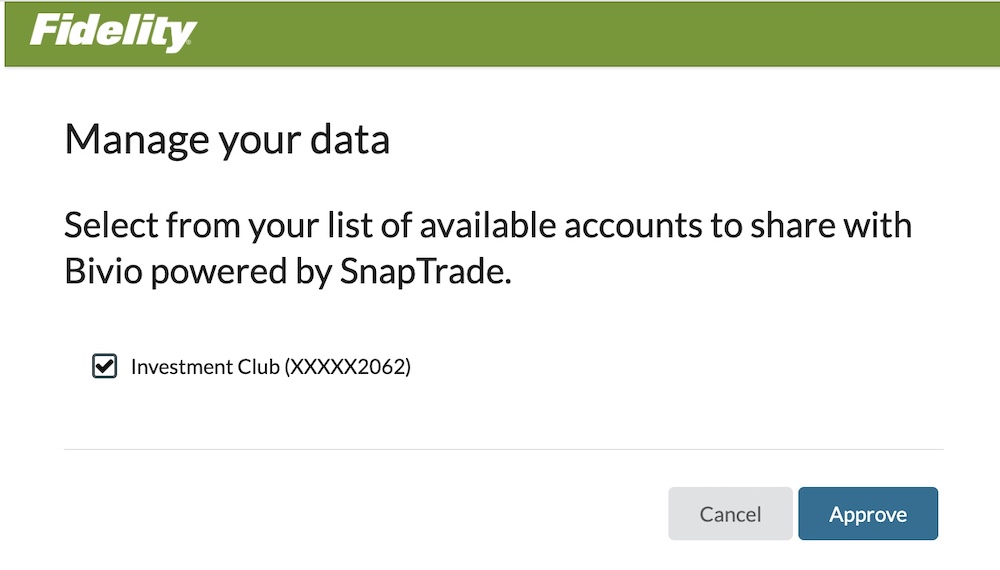
This page asks you to choose the account to link. Check the box next to your club account and click Approve.
If you have more than one club account, check the boxes next to all of them.
Do not check the box next to a personal or other account.
Wait while it is connecting to Fidelity.
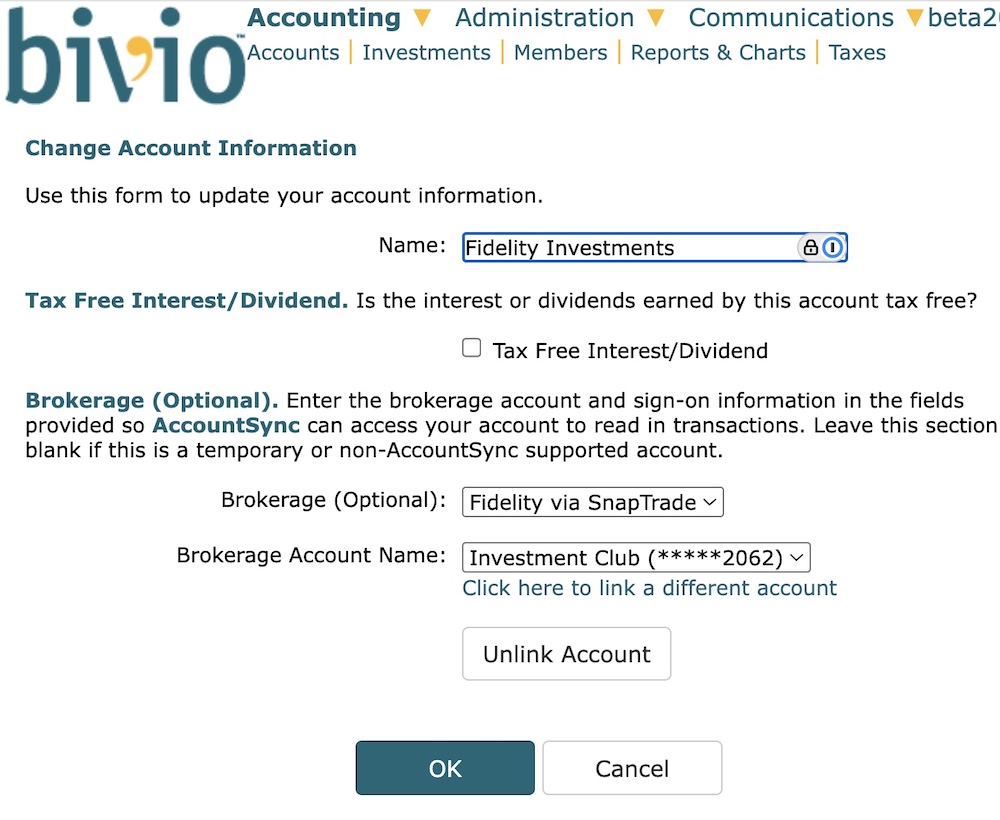
At this point, check the Brokerage Account Name box. Make sure your club's bivio Fidelity account name is followed by the correct last four digits of club's Fidelity account number, and then click OK.
Your accounts are now linked.
AccountSync updates Fidelity accounts each morning before the markets open. It will import transactions dated after the most recent Fidelity transaction entered in your club in bivio. If you need transactions imported that predate this, contact support@bivio.com. After the initial AccountSync update check carefully to see if all of your Fidelity transactions were imported. Compare your bivio transactions with your broker statements to make sure the cash balances agree.
Follow these steps to reconcile the accounts
If any transactions are missing or incorrect, you can edit them manually. If you have questions about entering or editing any transactions, or if you see any transactions that don't look right email support@bivio.com